Format a teleprompter script for easy reading
Turn a dense approved script into a usable reading copy. Work through line breaks, production cues, repeated phrases, and an actual display check.
 EasyLines team7 min read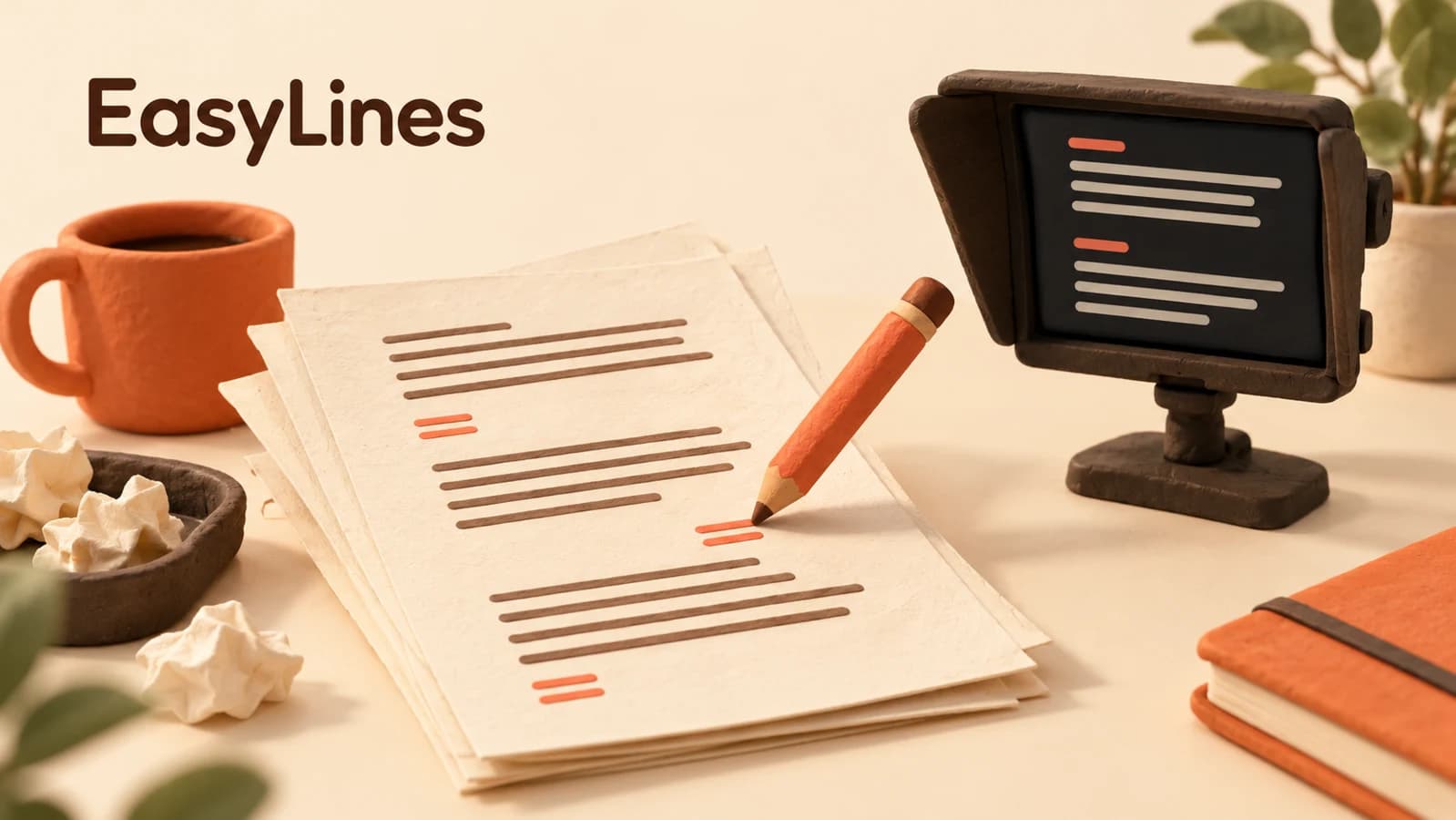
AI-generated editorial illustration.
On this page 8 sections
- 1. Keep the approved words and the reading copy separate
- 2. Find the places where your eyes lose the route
- 3. Rescue a dense paragraph without changing its message
- 4. Choose phrase boundaries instead of a fixed word count
- 5. Keep punctuation and cues understandable
- 6. Check what your prompter actually preserves
- 7. Compare content, then rehearse returning to your place
- 8. Frequently asked questions
Format a teleprompter script by separating the words you will say from production instructions, grouping complete thoughts, and checking the result on the actual recording display. Keep an unchanged master so a layout repair does not quietly alter approved wording. The worked example below rescues an awkward reading copy; it is a proposed preparation exercise, not a tested performance result.
Keep the approved words and the reading copy separate
Begin with two clearly named documents: the reference script and the recording copy. The reference holds the wording someone approved. The recording copy holds the same spoken content arranged for delivery. Put the version label in your project notes so you can identify both later. If you also need camera directions, keep those in a third column or a separate production note rather than scattering them among words you intend to say.
This separation matters when a useful formatting change becomes an unnoticed rewrite. Moving a sentence to another paragraph usually preserves the wording. Replacing “may” with “will” does not. If a line is difficult because of its language, flag that as a writing change and resolve it before returning to layout. Use the spoken-script guide when the problem is the sentence itself. Formatting cannot settle whether the underlying statement is accurate.
Find the places where your eyes lose the route
Read the copy at your intended speaking distance and mark the exact point where you hesitate. Look for three different hazards: a phrase split in an awkward place, a direction that resembles speech, and repeated sentence openings that make it hard to return after looking away. These call for different repairs. Adding more space everywhere may leave all three problems intact while making the document much longer.
For a repeated opening, inspect the surrounding context. A paragraph containing “Put the notebook…” three times may be perfectly understandable to a listener but difficult to relocate at a glance. You can preserve the approved wording while dividing the instructions into meaningful blocks. If you decide to add visible labels, check whether the recorder treats them as ordinary spoken text. A heading that helps in the planning document can become an unwanted line in the recording.
Rescue a dense paragraph without changing its message
Consider this hypothetical approved script about sorting notebooks: “Put the notebook you use today beside the bag. Put the notebook you are saving on the shelf. Put the loose notes in a folder, then place that folder beside the notebook you use today. Before you finish, check that the bag closes.” The production note adds: show the shelf after sentence two. That note describes a camera action; it is not part of the spoken paragraph.
In a planning copy, separate the first two instructions, give the folder instruction its own block, and leave the closing check together. Put “show the shelf” in the production notes beside the relevant block. The example below preserves the spoken words. Its breaks are suggested reading landmarks, not instructions to pause at every newline and not a promise that any particular prompter will display this arrangement unchanged.
Put the notebook you use today beside the bag. Put the notebook you are saving on the shelf. Put the loose notes in a folder, then place that folder beside the notebook you use today. Before you finish, check that the bag closes.
Choose phrase boundaries instead of a fixed word count
The University of Mary Washington’s Using a Script handout illustrates breaks where a speaker would naturally pause. Apply the principle to the folder sentence: “Put the loose notes in a folder” is a meaningful unit, followed by the next action. A break after “in a” would separate the instruction from the object it needs. Read the whole thought aloud before deciding where its visual boundary belongs.
Do not force every line to contain an identical number of words. A short line with an unfamiliar term can demand more attention than a longer familiar phrase. Likewise, a large blank area is not automatically useful breathing room. In a scrolling display it may separate context you need together. Start with only the breaks that solve a specific reading problem, then remove any that interrupt an ordinary sentence during rehearsal.
Keep punctuation and cues understandable
Preserve punctuation that clarifies meaning. If you use a personal pause mark in preparation, define it once and decide whether it belongs in the actual spoken copy. A slash might remind one presenter to pause while confusing another. Bracketed directions can be especially risky when you are tired and reading every visible word. Prefer a separate action sheet when the recorder offers no verified way to distinguish instructions from dialogue.
Emphasis marks deserve the same restraint. Mark only the word whose meaning needs attention, and compare a plain version if the result sounds exaggerated. Colour, bold type and underlining may disappear when text moves between tools. The University of Melbourne’s preparation guidance warns that Word formatting may not transfer perfectly to its iPad setup. Treat that as a reason to inspect your destination, rather than proof that every app handles formatting the same way.
Check what your prompter actually preserves
Open the recording copy in the tool you intend to use and inspect the beginning, the densest middle passage and the ending. Check the visible text at the distance and window size you plan to record with. A tidy document on a laptop does not establish readable text on a phone. Repeat this inspection if you rotate or resize the window, or change the font size, because the visible wrapping may change.
EasyLines is preparing to launch. Its current prompter implementation reflows words to the available width; you should not rely on pasted blank lines, rich text or paragraph breaks appearing exactly as arranged in your document. Keep meaningful sentence boundaries in the words themselves and verify the build you actually use. If your workflow requires exact visual breaks, establish that capability in your chosen tool before making it part of a production plan.
Compare content, then rehearse returning to your place
Before recording, compare the reference and reading copy sentence by sentence. Check names, quantities, qualifications and the final instruction separately. Confirm that no direction became dialogue and no repeated line disappeared during cleanup. In the notebook example, the folder must end beside the notebook used today, not on the shelf with the saved notebook. A prettier layout is not a successful rescue if it changes that relationship.
Finally, try a proposed recovery check: read the opening, look briefly toward the object you will demonstrate, then return to the next complete thought. Note where you actually lose your place and revise that passage only. The natural-reading guide helps with delivery once the copy is sound. Keep the verified version with your production notes, and join the EasyLines waitlist for launch updates if prepared lines near the camera suit your recording workflow.
Frequently asked questions
Should every sentence start on a new line?
Only if that arrangement helps in the tool you use. Group connected meaning and check the actual display rather than imposing identical breaks everywhere.
Should I use all capitals?
Use a form you can read comfortably in your actual setup. Compare a short sample before changing the whole document; this guide does not prescribe a universal case or font size.
Where do camera directions belong?
Keep them in production notes unless your recorder has a verified way to distinguish them from spoken words.
Will EasyLines preserve my blank lines?
Do not rely on that. The current prompter reflows words to the available width. Check the actual launch build for the formatting your workflow requires.
What is the final formatting check?
Compare the spoken copy against the approved reference, then rehearse finding the next complete thought on the actual recording display.
Sources and further checks
Coming to iPhone and iPad
Put your next script on EasyLines.
A little help with the words. More room to be yourself. Join the waitlist and we’ll email you at launch.