Describe visual information in your video script
Write essential visual details into your narration with a worked demonstration example, a sound-only review and a practical description checklist.
 EasyLines team6 min read
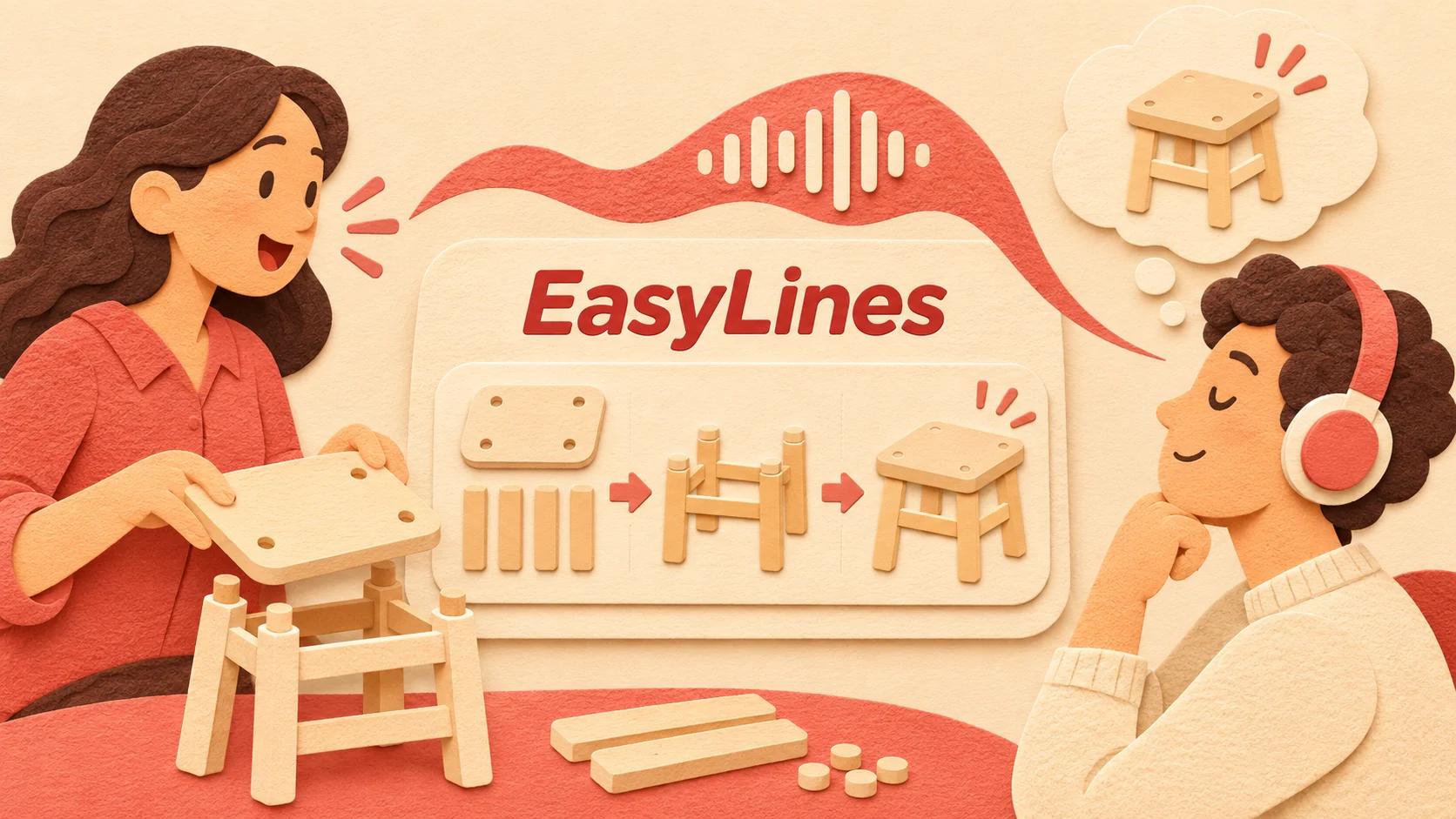
AI-generated editorial illustration.
On this page 7 sections
To describe visual information in a video script, say the essential action, location and result that a viewer needs to understand the scene. Build those details into the main narration where possible, then review without the picture to find meaning that still depends on seeing the screen.
Which visual information needs words?
Describe visual information that changes what the audience understands or needs to do. You do not need to narrate every color, gesture or background object simply because it is visible.
The W3C Web Accessibility Initiative description guide explains that description conveys essential visual information, including meaningful on-screen text. It also describes integrated description within the speaker's script. This is accessibility guidance, not a claim that following this article alone establishes compliance with a particular standard.
Start by writing the lesson's required outcome. For a demonstration of a storage box, the audience may need to know which latch opens, which direction it moves and what confirms closure. The presenter’s shirt and the wall color probably do not matter. Make that distinction before drafting so the narration has room for the details that carry the explanation. A list of everything in the frame can obscure the action just as easily as saying too little.
How do you replace vague pointing language?
Replace “this,” “there” and “like that” when the referenced object or action cannot be understood from the words alone. Name the object, describe the relevant movement and state the result without forcing listeners to guess.
Consider this hypothetical line: “Pull this over here, then it goes like that.” A more useful version is: “Pull the small latch toward the handle. When the latch sits flat against the lid, the box is closed.” The revision identifies the control, direction and visible end state. It does not describe unrelated features or promise that every similar box works this way.
Apply the method to the actual object you will film. Confirm the wording against its real operation, because a clear description of the wrong action is still wrong. If the direction depends on how the object is held, establish that orientation first. “With the handle facing you” can prevent a confusing left-or-right instruction.
How much description can fit in the main script?
Fit the essential description around the action rather than speaking continuously over every movement. If the action needs more explanation than the available gap allows, slow the demonstration or restructure the sequence.
Write a simple two-column planning sheet: what the viewer sees and what the listener must understand. For each visible change, ask whether the spoken line communicates the same required meaning. If it does, extra description may be unnecessary. If it does not, add the missing information where it is useful.
For example, a presenter might say, “The lid is now level with the rim,” while holding the closed box still. That provides a result a listener can understand without a long inventory of shapes. If a visual comparison depends on two different positions, describe the difference explicitly. Do not expect a music cue or a pause to explain a state change that is never named in the audio.
How should on-screen text be handled?
Speak or otherwise provide meaningful text information when the audience needs it to follow the video. A heading, label or short result can carry the main point even when the presenter never reads it aloud.
Suppose a video displays “Archive complete” after a task. If completion matters to the lesson, the narration can say, “The confirmation now says archive complete.” If an on-screen card contains several conditions, summarize only when the summary preserves all information the audience needs. Otherwise plan enough time for the full meaning in the appropriate accessible format.
This is a planning decision, not a reason to rush through dense text. Reduce the text or divide the section if it cannot be communicated clearly. Keep the script and visible wording consistent during revisions. A last-minute change to the card can leave the audio describing an earlier result, which creates confusion for everyone rather than only for viewers who cannot see the card.
What does a sound-only review reveal?
A sound-only review reveals missing references and unexplained changes. Listen to a rough read while following the task mentally, then mark every place where you need the picture to understand what the speaker means.
Use a neutral reviewer when available and ask a concrete question: “What happened between opening the box and showing the finished result?” A reviewer saying “it sounds fine” is less useful than describing the sequence back. Do not claim this exercise replaces review by people with relevant accessibility expertise or lived experience.
Keep a small issue log: unclear object, missing direction, unspoken text or unexplained result. Revise the line that causes each issue and repeat only the affected passage. The demonstration timing guide can help you give actions enough space. The aim here is understanding the essential visual meaning; synchronization is a related recording task, not the whole accessibility question.
How do you record the revised narration?
Record the revised words with the actual demonstration and check that the named object, movement and result match the footage. A descriptive script can become inaccurate if the filming sequence changes.
Keep the main reading layout comfortable using the natural teleprompter reading guide. Mark visual-description lines clearly in your working script, then ensure those marks do not become accidental spoken instructions. Preserve a clean spoken copy for recording and a separate planning copy if that helps.
After editing, repeat the sound-only review on the finished sequence because removed shots and shortened pauses can change what the narration needs to explain. Keep broader accessibility work, such as captions and other required alternatives, in the production plan too. EasyLines focuses on script reading and recording and is preparing to launch. Join the EasyLines waitlist for the announcement, and use an appropriate finishing workflow for the video's accessibility needs.
Frequently asked questions
Do I need to describe everything visible?
No. Prioritize visual information needed to understand the content, including essential actions, results and text.
Is integrated description the same as captions?
No. Integrated description puts essential visual meaning into narration. Captions communicate audio information through text.
Can I just replace every “this” with a noun?
That helps, but also check direction, state changes and results. Naming an object alone may not explain what happened.
Does a sound-only check prove accessibility compliance?
No. It is a useful planning exercise. Apply the relevant accessibility requirements and appropriate review to the finished work.
Sources and further checks
Coming to iPhone and iPad
Put your next script on EasyLines.
A little help with the words. More room to be yourself. Join the waitlist and we’ll email you at launch.