Find why text is mirrored in your saved video
Locate backwards text in the preview, saved clip or export, then correct the right stage without reversing readable titles and directional instructions.
 EasyLines team6 min read
AI-generated editorial illustration.
On this page 8 sections
- 1. Distinguish reflection from rotation
- 2. Make one unmistakable reference card
- 3. Inspect preview, source and export separately
- 4. Correct the first confirmed problem once
- 5. Watch for readable titles over reversed footage
- 6. Verify a fresh export through the intended route
- 7. Keep the finding with the source file
- 8. Frequently asked questions
When text looks backwards in a video, inspect the saved source before changing anything. Then compare the source with the edited export and the version viewers will receive. A mirrored preview can be separate from the recording. Finding the first stage where lettering reverses helps you fix the right image instead of applying another flip to an already corrected file.
Distinguish reflection from rotation
Look at a recognizable word. If the frame is upright but the characters read as a mirror image, investigate a horizontal flip. If the whole picture lies sideways, investigate rotation. These are different transformations. Turning an upright mirrored word upside down will not restore its normal letter order. Describe the symptom before looking for a control whose name might use “flip” loosely.
Use actual lettering rather than your hairstyle or which hand feels familiar. A person can look unusual in a normal recording simply because it differs from their usual self-view. That reaction does not identify a technical fault. A known asymmetric label gives you a reference that another person can interpret without knowing how you usually appear in a mirror.
Make one unmistakable reference card
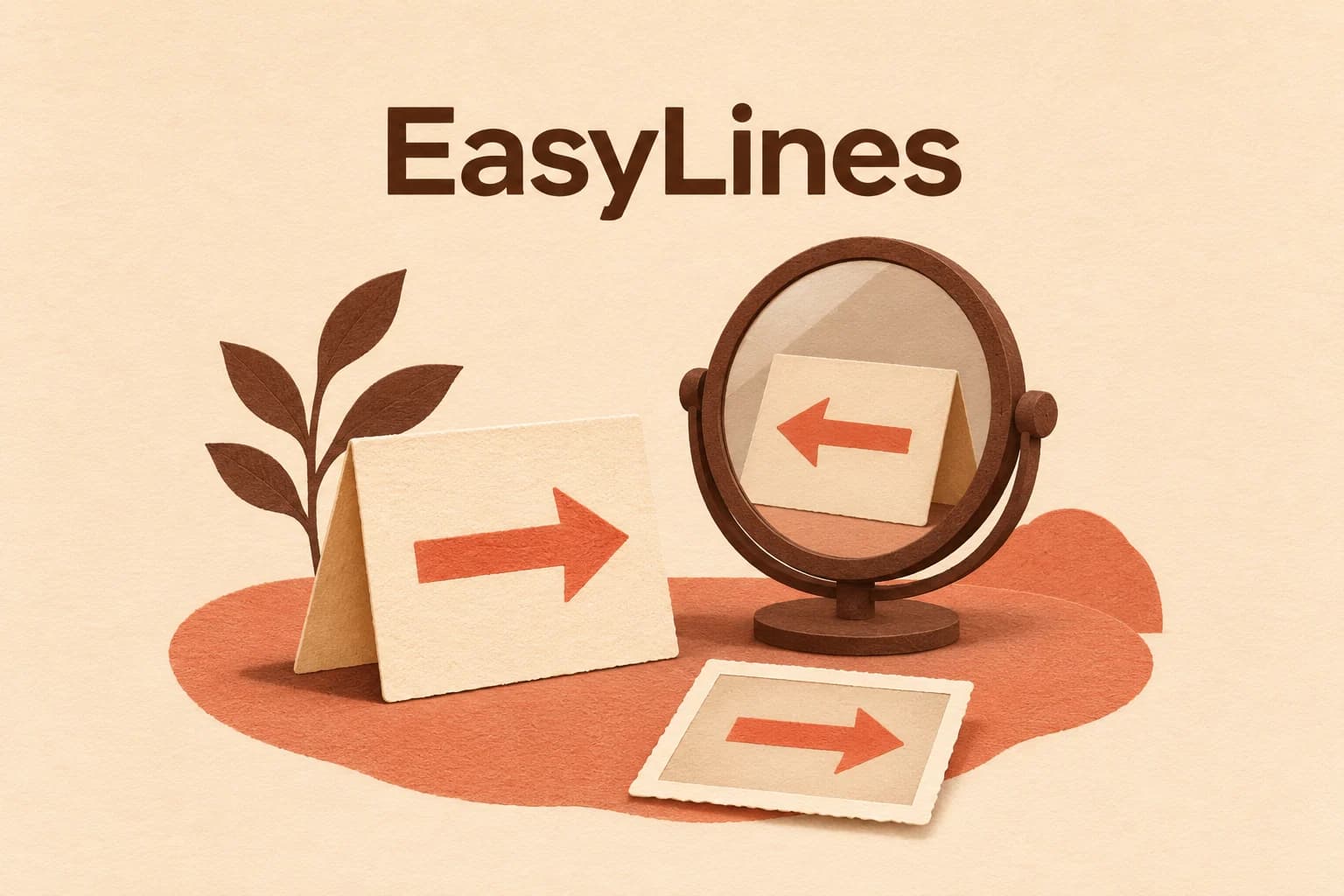
For a proposed check, write PAPER 27 on an ordinary card with an arrow pointing toward its right edge as you read it. Keep the writing on the side facing the lens. Record a short clip in the app, camera and mode intended for the main session. Say that you are making an orientation check, then hold the card still long enough to inspect the characters.
Keep a note or photograph of the correctly readable card. The arrow is a second reference, not a substitute for the word. Avoid a symmetric mark or a number such as 808 that may hide a reversal. You can use a different harmless word, but retain the same card throughout the comparison so changing props does not add another source of uncertainty.
Inspect preview, source and export separately
Write four rows in your notes: live preview, saved source, edited export and destination version. For each, record whether PAPER 27 reads normally, whether the arrow agrees with your reference, and which exact file or view you inspected. Open the saved source directly in a player rather than relying on the thumbnail inside the recorder. Then inspect the exported file independently.
A preview control need not control the saved picture. For example, Zoom’s current settings documentation says its Mirror my video preview setting changes only your self-view. That is a specific example, not a rule for every app. Check your recorder’s own behavior with a saved sample. Do not transfer a camera setting from one app to another merely because both use the same front camera.
Correct the first confirmed problem once
If the preview is reversed but the saved source and destination are readable, a saved-file correction has no job. Change the preview preference only if that helps you perform comfortably. If the source is reversed, decide whether your recorder provides a verified saved-output option for future takes or whether you need to correct that clip in a separate editor. Test the next saved sample either way.
On iPhone, Apple’s Photos guide documents opening a video, choosing Edit and Crop, and using Flip for a horizontal reflection. Rotate is a separate control that turns the image ninety degrees. Follow the controls available in your current version. Preserve a source copy before experimenting, and remember that edits made through iCloud Photos can sync across devices using that service.
Watch for readable titles over reversed footage
Consider this hypothetical editing case. A creator records the PAPER 27 card, and the saved camera image is reversed. In an editor, the creator adds a normally readable title saying “Paper sorting.” The finished picture now contains reversed card lettering and correct title lettering. This is an invented example to explain the decision, not a tested result from a particular editor.
Flipping the entire finished composition would correct the card while reversing the title. Instead, locate the camera clip or layer before the title is combined with it, apply the needed correction there, and inspect the resulting composition. Exact controls depend on your editor. If only a flattened file remains, do not assume one whole-frame flip can make independently oriented elements agree. Returning to the source project may be necessary.
Also inspect diagrams, logos, room signs and directional gestures. A correction affects the whole image region to which it is applied. The hands-only tutorial guide explains why stable object orientation matters when viewers follow a physical step. Recheck any spoken “left” or “right” against the corrected picture instead of judging success from the title alone.
Verify a fresh export through the intended route
After a correction, export a short recognizable sample and open that file outside the editing preview. Check the card, added title and directional reference together. If the source and local export are readable but the destination view differs, investigate that stage before altering the source again. An on-screen self-view at the destination may itself have different presentation behavior from the actual shared file.
Where you can inspect the actual viewer version, check it with the same reference. Where access is unavailable, record that limit rather than marking the entire route verified. A local file check establishes what that file displays in the player used; it does not prove every platform will present it identically. Keep the exact stage names in your notes so a collaborator can repeat the relevant comparison.
Keep the finding with the source file
A useful note might say: “Card reversed in saved source; clip corrected before title; exported sample reads normally.” That hypothetical note identifies the cause location and the correction location. “Mirroring fixed” leaves both unclear. Retain the original and corrected identifiers until the full piece has been checked, especially when several people handle the same material.
Use the saved-take verification checklist when you need to preserve the original independently. EasyLines is preparing to launch as a teleprompter and recorder; its waitlist offers launch updates. Verify the saved behavior of the recording app and build you actually use. Prepared words and a comfortable preview do not establish the orientation of an exported file.
Frequently asked questions
Does a mirrored preview mean my file is mirrored?
No. Inspect a saved clip with recognizable lettering. Some preview settings affect only self-view; recording behavior is app-specific.
Will rotating the video fix backwards words?
Rotation changes which way the frame points. Horizontally mirrored text needs the relevant reflection corrected at the appropriate stage.
Why is my title right but the card backwards?
The title may have been added separately over reversed camera footage. Inspect and correct the source layer rather than automatically flipping the entire finished image.
Should I flip every front-camera clip?
Check each recording workflow first. Apply a correction only when the saved image needs it, then inspect the result.
What proves the correction worked?
A fresh exported file with the reference lettering, added text and important directions all consistent, plus a destination check where available.
Sources and further checks
Coming to iPhone and iPad
Put your next script on EasyLines.
A little help with the words. More room to be yourself. Join the waitlist and we’ll email you at launch.