Save video takes before changing your iPhone
Inventory important recordings, export a sample, and verify playback away from your old iPhone before relying on a new device or account sync.
 EasyLines team8 min read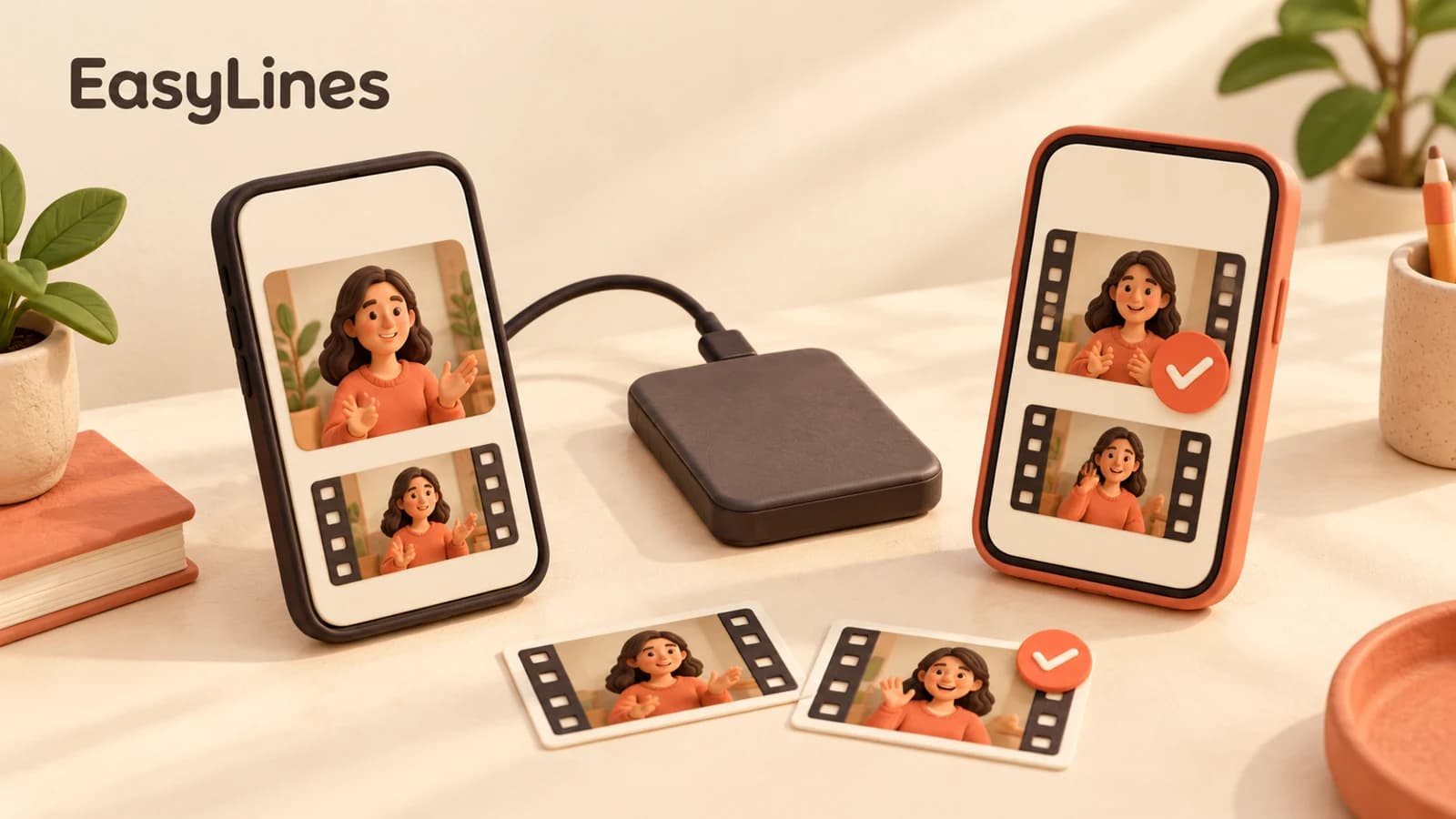
AI-generated editorial illustration.
On this page 8 sections
- 1. Separate three different recovery questions
- 2. Make a manifest of the takes that matter
- 3. Prove the route with one exported file
- 4. Choose a destination you can independently access
- 5. Understand what Photos sync does and does not prove
- 6. Verify the whole important set, not just the sample
- 7. Check access from the new workflow before closing the task
- 8. Frequently asked questions
Before changing your iPhone, make a list of important takes, save or share the actual video files to a destination you can access away from the old phone, and play those copies to confirm they work. Check scripts and recording files separately. Seeing a script on another device does not establish that the video recorded from it is there.
Separate three different recovery questions
Treat scripts, recording files, and the phone’s broader backup as separate checks. A script is text you can read again. A video file contains the performance you already recorded. A device backup follows the backup service’s own scope and settings. They can support one another, but evidence that one exists does not confirm the other two.
EasyLines is preparing to launch. Its current product information says an optional account backs up scripts and progress, while recordings remain on the device where they were made. Saving or sharing a take is a separate action. The current native sync implementation likewise sends scripts and progress rather than recording files. Do not interpret account sign-in as a video upload or a verified transfer of your library.
Apple distinguishes syncing services from iCloud Backup. Its documentation says information already syncing through services such as iCloud Photos is not duplicated in the daily device backup. Some other device information may be included according to the relevant settings. That is useful context, but it is not a reason to assume a particular recording file has reached a recoverable destination.
Make a manifest of the takes that matter
Before exporting, list the recordings you need to keep. Use the identifiers available in the recording app and add enough context to recognize each take: project, recording date, approximate duration, and whether it is the selected performance or a supporting shot. A note is sufficient. The aim is to make missing material visible before you begin relying on memory.
Include more than the single favorite talking-head take when the project needs supporting footage. The approved introduction, a close-up, a replacement sentence, and an audio-only recording can be separate items. A finished edit may also matter, but it does not necessarily replace the originals you would need for a later correction. Decide which files are important to your actual work.
For a hypothetical example, suppose a project needs seven files: one main take, two alternate openings, two demonstrations, one pickup, and one finished reference video. Write seven entries before transferring anything. This count is an illustrative planning example, not a claim about your library. If your destination later contains six items, you have a specific discrepancy to investigate.
Prove the route with one exported file
Choose one short, recognizable take and use the save or share option offered by the recording app. Follow its actual controls rather than a menu path remembered from another app. In EasyLines, the current product description identifies saving to Photos or sharing elsewhere as choices; exact controls should be checked in the build you use when it becomes available.
Open the result in the destination rather than immediately reopening it from the recording app. Check that you can find it by its identifier or recognizable content, start playback, hear the voice, and see the complete ending. Compare the duration with your note. A thumbnail establishes that an item is listed; it does not establish that the entire performance plays correctly.
If that sample fails, resolve the problem before exporting the full set. Check available destination storage, whether the transfer has completed, and whether the file can be opened by the player or editor you intend to use. Keep the old phone and original recording available throughout this check. A failed sample is useful because it exposes an uncertain route while the source still exists.
Choose a destination you can independently access
Saving a take into Photos on the old phone gives you another place to find it on that phone. You still need to establish how you will access it away from that device. Depending on your workflow, that might involve iCloud Photos, a computer, or a shared file destination. Select a route you can actually inspect instead of assuming every destination uses the same transfer behavior.
If you use a cloud destination, check its available storage and transfer status. Device storage and cloud storage are different capacities. Apple explains that iCloud storage supports services including backups, Photos, and Drive; a full account can interrupt expected operations. Do not repeatedly export a large batch without checking whether the first files arrived successfully.
For irreplaceable recordings, consider retaining a separate downloaded copy in a location you can access independently, such as a computer or suitable external storage. The practical check remains the same: locate the specific file there and play it. A second shortcut to the same cloud item is not evidence that you have created another independent file copy.
Understand what Photos sync does and does not prove
If you use iCloud Photos, Apple says photos and videos become available across devices using the same Apple Account with the service enabled. Allow the relevant upload or download to complete, then check the selected take on another device or through iCloud Photos in a browser. Confirm the actual recording you exported, not merely another clip from the same project.
iCloud Photos keeps changes in sync too. Apple says deleting content from a device also removes it from iCloud and other devices with iCloud Photos enabled. A synced library therefore needs different thinking from a separate retained file copy. This checklist does not require deleting anything. Keep the source available while you establish the destination and its behavior.
Apple’s current download guidance explains how to obtain originals from Photos or iCloud.com and offers different download options. Choose an option appropriate to your intended use and check the downloaded result in that workflow. Avoid assuming that a visible preview, an optimized local item, and a downloaded original are identical states. When quality matters, compare the actual file you intend to preserve.
Verify the whole important set, not just the sample
Once the route works, transfer the remaining important files and reconcile them against the manifest. Mark each entry only when the destination item is identifiable and accessible. For the seven-file example, check all seven entries rather than assuming a successful first file proves the other six arrived. Duplicate names or multiple alternate openings are reasons to compare content carefully.
Play every irreplaceable take from beginning to end when practical. At minimum, inspect the opening, middle, ending, duration, and audible content of each important file, then give extra attention to long or interrupted transfers. Opening a file and seeing its first frame is a limited test. Write down anything you have not fully checked rather than marking the whole collection verified.
Keep useful context with the files: approved script version, selected take, required pickup, and any separate audio. A recording without its production note may still be playable but difficult to use. The batch-recording guide provides a simple handoff format. Use that organization here so preservation protects the project as well as individual media files.
Check access from the new workflow before closing the task
When the new phone or replacement workflow is available, open the destination there and find a known take. Confirm you can play it and, if relevant, open it in the editor you plan to use. Separately check the scripts and progress you expect from an account. These are two different acceptance checks; do not use a restored script as evidence that its associated recording transferred.
Keep the old phone and originals available until the important file checks are complete. This article does not walk through erasing, trading in, deleting an app, or removing source files. The useful finish line here is simpler: you know where the important recordings are, can identify them, and have verified access away from the original recorder.
Before the first new session, run the phone recording setup check so a successful file transfer is followed by a usable new recording. EasyLines remains in preparation for launch; its waitlist is for launch updates. File preservation depends on the copies and playback checks you complete, not on joining a list or merely signing into an account.
Frequently asked questions
Does my EasyLines account upload my video takes?
Current product information says it backs up scripts and progress, while recordings remain local. Save or share important takes separately.
Is a video thumbnail enough to confirm transfer?
No. Open the destination copy and check playback, sound, duration, and the ending.
Is iCloud Photos the same as iCloud Backup?
No. Apple describes Photos as a syncing service; content already syncing there is not duplicated in the daily device backup.
Can I check only one file before transferring everything?
A sample proves the route is worth using. Reconcile and check every important file after the full transfer.
What is the final check before relying on the new phone?
Find and play important recordings away from the old phone, and separately confirm access to any backed-up scripts and progress.
Sources and further checks
Coming to iPhone and iPad
Put your next script on EasyLines.
A little help with the words. More room to be yourself. Join the waitlist and we’ll email you at launch.