Vertical video framing that leaves room for UI
Frame faces, hands, and product demonstrations with room for platform buttons and text. Use a motion test and check each destination before publishing.
 EasyLines team7 min read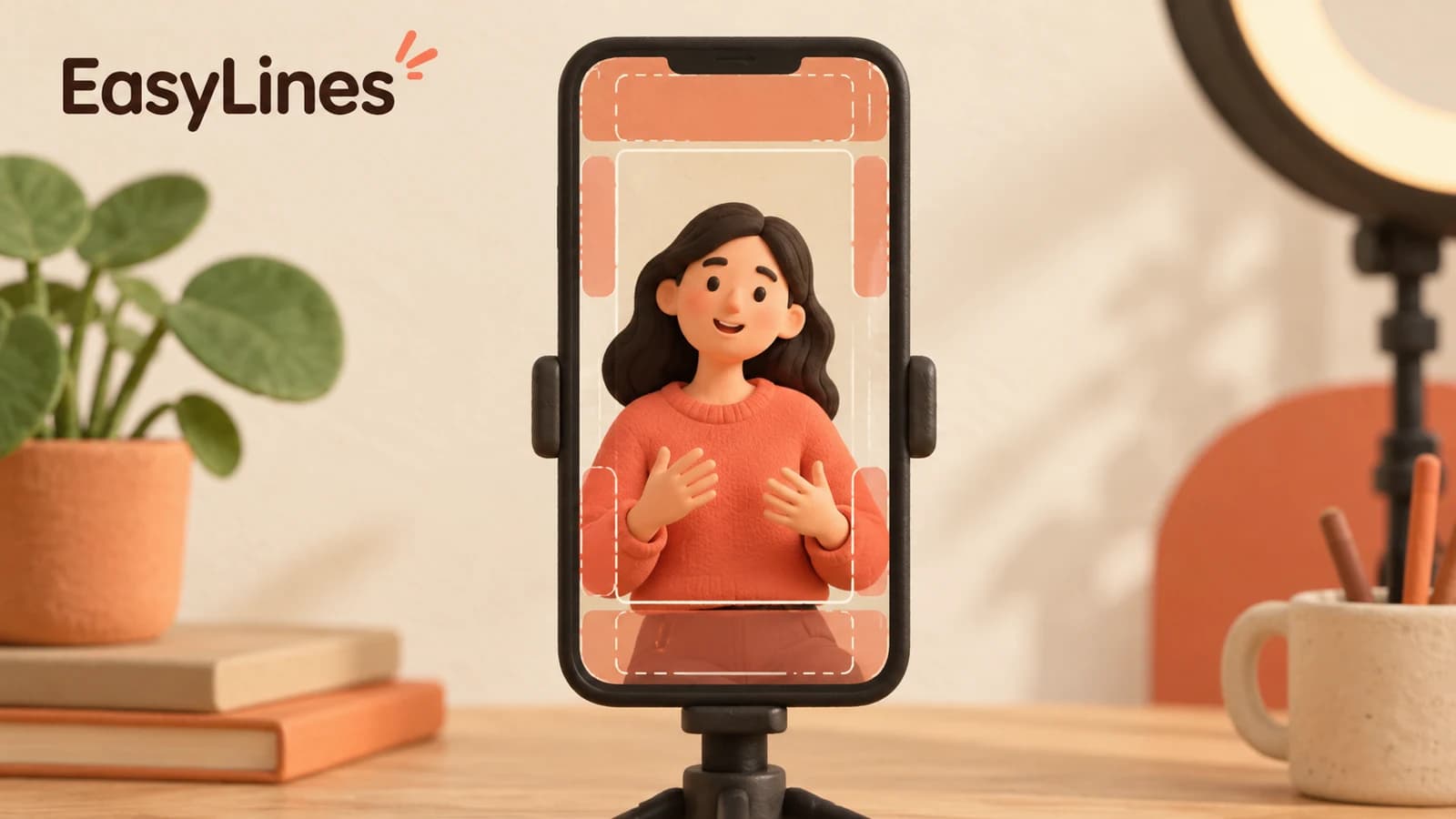
AI-generated editorial illustration.
On this page 7 sections
Frame vertical video around the content people must see, then leave room for the destination’s buttons, descriptions, and other overlays. Test the full movement of your hands and product before recording the main take. A centered face alone does not protect a demonstration that drops behind the interface halfway through the video.
Identify the destination and viewing context
Write down where this version is intended to appear and whether it is an organic post or a paid placement. A generic “vertical social video” brief leaves important layout decisions unresolved. Ask for the intended destination before locking the framing, especially when a client will publish the file. You need enough context to check the actual interface around the important content.
Official platform guidance is useful within its stated scope. TikTok’s auction in-feed ad specifications say the safe area depends on the video dimensions, caption length, and additional formats. That is ad guidance, not a guarantee that every organic post has identical boundaries. Use the current reference for the placement you are preparing, and keep a note of the date you checked it.
Choose what must stay visible
List the few things that carry the explanation: your eyes and mouth, the moving part of the product, a label the viewer must read, or a hand showing a particular action. Everything in the room does not need equal protection. A decorative plant near the edge can be partly covered without damaging the lesson. A button you are demonstrating cannot.
Watch a rough rehearsal and stop at the moment of greatest movement. That frame often requires more room than the opening pose. A bottle held beside your shoulder may travel down toward your waist while you describe its cap. Mark where the cap must remain visible, then build the composition around the whole action. If the shot cannot hold it comfortably, plan a separate detail view rather than squeezing every element into one frame.
Reserve room for a person, an action, and text
Begin with a stable camera and a comfortable speaking position. The phone setup checklist covers that foundation. Now consider three layers: where your face sits, where the demonstration moves, and where any planned text will appear. The layers can share a shot, but they should not compete for the same small patch of the picture.
If captions or titles will be added in an editor, indicate their planned area in the production notes before recording. Use a temporary guide if your chosen editor supports one, or draw a simple sketch on paper. The guide is a planning aid. It does not establish that the platform will leave those exact pixels clear. Keep critical action away from the outer edges and compare the layout with the current destination preview.
Avoid solving a crowded picture by shrinking every element. If the product detail becomes too small to understand, change the shot. You might record the spoken explanation with an object held clearly in view, then capture the mechanism in a closer shot. That gives the editor useful material without asking the viewer to read tiny text and inspect a tiny demonstration simultaneously.
Make a saved test of the actual action
Use the real object and the gestures from your script. Start in the opening position, complete the demonstration, and hold the ending. Include the movement between those moments. Review the saved clip rather than relying on how the live preview looked while you were also speaking. Check the beginning, widest gesture, lowest product position, and final frame.
For each moment, ask whether the meaningful detail is fully visible and large enough to interpret. Then check the area where the interface or planned text could overlap it. If a gesture repeatedly travels into a risky area, move the working position or give the action its own shot. Holding your hands rigidly in an unfamiliar position for an entire take may make the explanation harder to deliver.
Keep the UGC product shot list beside this review. The shot list answers whether you captured the needed action; this spatial check answers whether viewers can actually see it once the video is presented. Passing one check does not automatically pass the other.
Work through a hypothetical product example
Imagine a vertical demonstration of a desk lamp. The opening shows the creator’s face near the middle and the lamp at the lower right. That pose looks tidy in the camera preview. During the explanation, the creator turns the lamp head and points at its hinge. Both the hinge and pointing hand move toward the right edge, exactly where the chosen destination preview shows controls.
The revised plan places the lamp farther inward and records the hinge action in a separate close-up. The creator leaves space above the action for a short title planned by the editor. A new motion test checks the entire adjustment, including the moment the hand releases the lamp. This is a hypothetical planning example, not a report of an upload or a tested universal layout.
The handoff note describes the important constraint: “Keep the hinge visible through the full turn; title belongs above the product; recheck against the selected placement.” That tells an editor why the space matters. “Use the safe zone” alone leaves them guessing which detail you were protecting and which destination you checked.
Check each finished destination version
Google’s vertical-video ad guidance explains that overlays, calls to action, and buttons can appear in different places depending on format, campaign type, and screen. Treat that variability as a reason to verify the destination version. Do not assume that one downloaded overlay establishes a permanent safe area across every app and screen.
Before publishing, inspect the exported version in the available destination preview with its intended text and placement settings. Where you can inspect the final viewing context, check it again there. TikTok also notes that its ad preview can differ slightly from the live version because it is not specific to a device. A preview is useful evidence, with limits you should carry into review.
For reuse on another platform, reopen the composition decision. Keep the source recording with enough room for a different layout, and supply an alternative detail shot when the action is tight. Your acceptance note should name the destination, the checked version, and the critical detail that stayed clear. Repeat this check when the platform presentation or deliverable changes.
- Name the destination and whether the placement is paid or organic.
- Mark the important face, hand, product, and text areas.
- Review the full action in a saved test.
- Check each finished destination version with current references.
Frequently asked questions
Is there one safe-zone size for every platform?
Do not rely on a universal box. Platform guidance can vary by placement and interface, so use the current destination reference and inspect your version.
Should I keep my face exactly in the center?
Start with a comfortable composition, then make room for the full demonstration and planned text. The important question is what remains visible throughout the action.
Can I use ad templates for an organic post?
They can flag potential interference, but their documented scope is advertising. Check the organic viewing context separately.
Do safe zones only matter for captions?
No. Hands, labels, product mechanisms, faces, and other essential details can also be obscured.
Should I record a different take for every platform?
First check whether one roomy source take works for each destination. Capture an alternative shot when the action cannot remain clear in the required versions.
Sources and further checks
Coming to iPhone and iPad
Put your next script on EasyLines.
A little help with the words. More room to be yourself. Join the waitlist and we’ll email you at launch.