Keep phone video focus and exposure steady
Diagnose changing sharpness and brightness before recording. Compare subject distance, lighting, and the controls available in your actual camera app.
 EasyLines team7 min read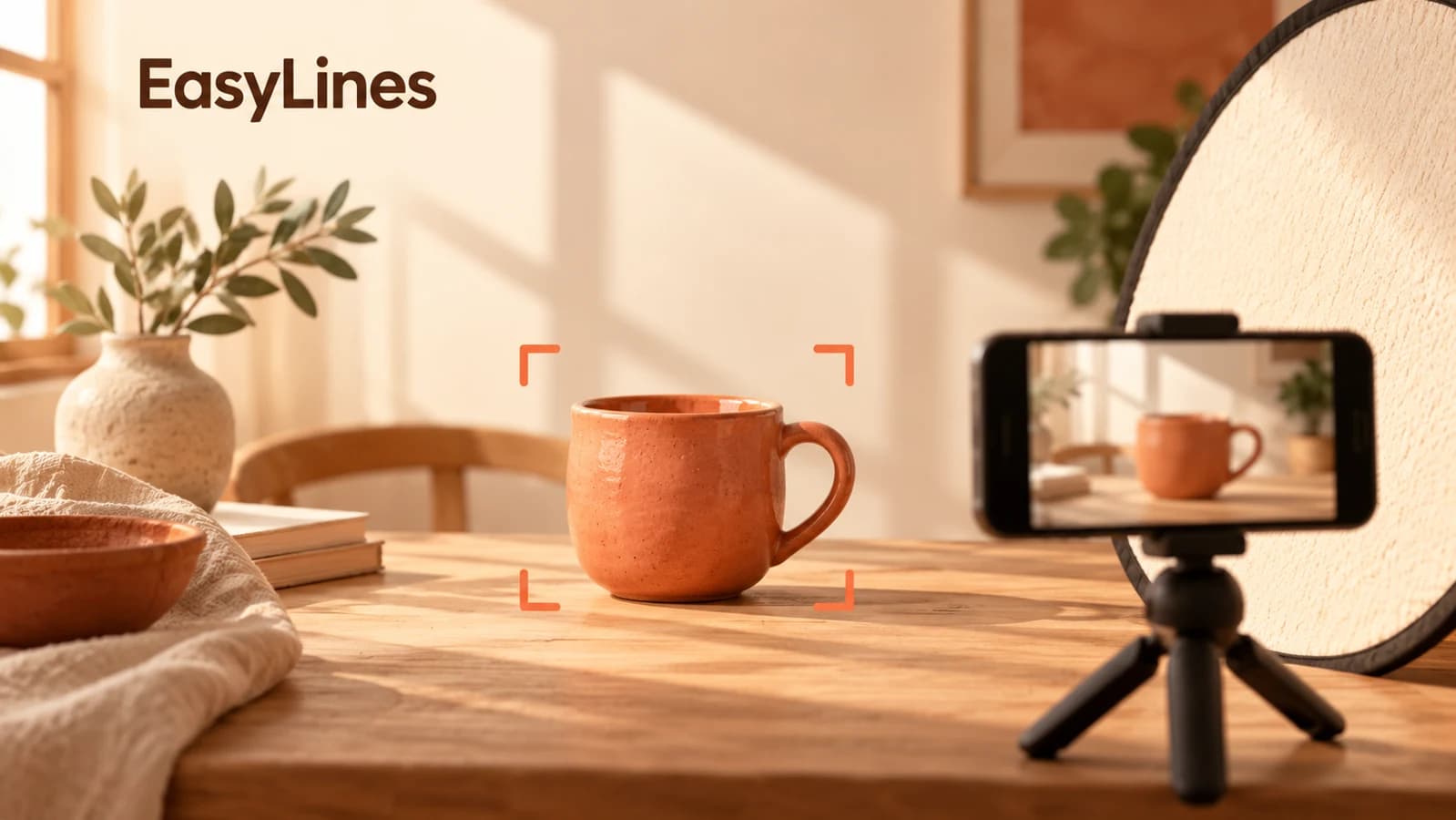
AI-generated editorial illustration.
On this page 8 sections
- 1. Describe the change before diagnosing its cause
- 2. Start with a still subject and stable light
- 3. Test the nearest and farthest useful positions
- 4. Distinguish Apple Camera’s different lock settings
- 5. Choose a control only when it matches the shot
- 6. Use a face, card and return comparison
- 7. Accept a useful shot or collect evidence for support
- 8. Frequently asked questions
When phone video keeps changing, first separate the symptom: soft detail, rising and falling brightness, shifting colour, or a sudden change in framing. Then repeat a small movement while changing one relevant condition. A focus adjustment cannot solve every brightness problem, and a control called Lock Camera is not necessarily a focus lock. Check the app, camera and recording mode before choosing a setting.
Describe the change before diagnosing its cause
Play the saved clip and identify a moment you can repeat. If the eyes or lettering become soft and then sharp, note a sharpness change. If the whole face becomes lighter and darker while detail stays clear, note brightness. If a neutral object looks warmer or cooler, note colour. If the framing jumps, note that separately. More than one can happen, but do not begin by calling all four “autofocus.”
Keep the observation specific: “The card is soft when it moves toward the phone; the face is clear after it returns” gives you a useful test. “The camera is broken” does not. A saved clip can reveal the symptom without revealing the cause. Movement blur, subject distance, lighting, camera behavior and hardware trouble need different investigation. This workflow narrows the next comparison; it does not remotely diagnose a particular phone.
Start with a still subject and stable light
Put the phone on a secure support and choose the camera and orientation you intend to use. Begin with a face or ordinary object at the planned distance. Record a short still passage without bringing anything toward the lens. Keep the lighting unchanged for that sample. If the picture already fluctuates while everything is still, you have a different starting problem from a demonstration that changes only when a prop enters the frame.
For a brightness comparison, try a position where passing shadows, a bright moving screen or changing window light is less prominent. Change one source or position, then repeat the same still passage. These are proposed room comparisons, not guarantees that any particular lamp or window arrangement will solve the issue. Use the phone setup guide for the broader framing and lighting foundation before investigating individual controls.
Test the nearest and farthest useful positions
Rehearse the action you actually need to show. Start with the object in its normal position, move it to the nearest intended demonstration position, hold it still briefly, and return it. Review the saved result at each point. A label that looks acceptable in the opening can become unreadable when held much closer. Check whether the action needs that close position or whether a separate view would communicate the detail better.
Not every phone camera has the same focusing capability. Do not assume a camera can adjust to any distance simply because another camera on the same phone can. If a closer object stays soft, try a slightly more distant demonstration position and compare the same lettering while it is still. If only the moving moment looks smeared, inspect the held position before deciding the problem is focus hunting. Keep observations about movement and settled detail separate.
Distinguish Apple Camera’s different lock settings
Apple’s video-settings guide says Lock Camera prevents switching between cameras while recording on supported models. It is not a promise to hold focus or exposure. The same guide describes Lock White Balance for colour capture. A colour setting addresses a different variable from subject sharpness. Check the controls available on your model and software version rather than applying a screenshot from a different device.
Apple separately documents locking focus and exposure with Camera Control on supported models. That method requires enabling Lock Focus and Exposure, then maintaining the light press while the lock is needed; releasing Camera Control turns that lock off. It is a specific hardware-and-app interaction, not a universal instruction to leave an unattended phone locked. Follow the current instructions for your setup and confirm the indicator and saved result.
Choose a control only when it matches the shot
A fixed talking-head position and an object moving between different distances present different tasks. If your chosen recorder offers focus or exposure controls, consult its own instructions and test them with the complete action. Holding one setting may suit a still subject but fail to keep a nearer prop clear. Do not assume that making the picture stop changing makes every important part of the picture usable.
Likewise, an exposure hold does not freeze the light in the room. If daylight changes during the take, inspect the recorded face after that change. You may need a more repeatable light arrangement or shorter recording blocks. Separate the decision about camera adjustment from the decision about the environment. Avoid adding several locks at once: a new problem is difficult to trace when you cannot remember which control altered which part of the image.
EasyLines is preparing to launch as a teleprompter and recorder. Its current recorder source does not establish a user-facing focus or exposure lock, so do not carry Apple Camera instructions into EasyLines as if they were the same interface. Use only controls verified in the app and build you have. A test in one app is not proof that another app offers identical capture behavior.
Use a face, card and return comparison
Try this proposed diagnostic with a harmless demonstration card. Record your opening at the normal face distance, hold the card where the viewer needs to read it, then lower it and finish the sentence. Note three results: face before, card while held, face after. Also note whether brightness changes when the card enters. Repeat only after making one chosen adjustment, such as moving the card farther from the phone.
For a hypothetical result, suppose the face is clear in both positions but the close card is soft. The next comparison moves the card outward; it does not immediately change every lighting setting. If the card becomes readable but too small for the demonstration, a separate detail shot may be the better production choice. If everything brightens when a dark card fills the frame, investigate the brightness behavior separately rather than calling the entire event a focus fault.
This example contains no observed test results and promises no universal cure. Your note might instead show that the still baseline is unstable, that a different camera behaves differently, or that moving the card changes nothing. Retain the unchanged reference so those results remain understandable. Use the product-video shot list if the answer is to divide the explanation and detail into separate views.
Accept a useful shot or collect evidence for support
Judge the full saved sequence by its communication task. Can viewers see your face during the explanation and read the important card or product detail when needed? Does the light remain usable through ordinary movement? A perfectly steady background is less important than a demonstration that stays understandable. If a single shot cannot do both jobs, record a clear explanation and a separate detail view instead of performing an awkward distance compromise.
If the issue persists in a still, repeatable setup, note the device, software, app, selected camera, recording mode and exact moment of change. Keep a short sample for the app or device support channel you choose. Report what you observed without asserting an unverified hardware cause. Join the EasyLines waitlist for launch updates if prepared lines would help your delivery; camera-control availability still needs checking in the actual recording app.
Frequently asked questions
Is Lock Camera the same as focus lock on iPhone?
No. Apple describes Lock Camera as preventing switching between cameras during recording on supported models. It does not mean focus and exposure are locked.
Does white-balance lock stop exposure changes?
It addresses colour capture. Treat brightness and sharpness as separate symptoms and use the appropriate controls available in your recording app.
Why is the object blurry when my face is clear?
Compare the object while held still at different useful distances. Camera capability, distance and movement may matter; the clip alone does not establish a single cause.
Should I lock focus for a moving demonstration?
Only after testing the full action with a control your app actually provides. A held setting may suit one distance while leaving another important position unclear.
Does EasyLines provide the Apple Camera locks?
No such user-facing controls are established by the current recorder source. Check the actual build rather than assuming another app’s controls are available.
Sources and further checks
Coming to iPhone and iPad
Put your next script on EasyLines.
A little help with the words. More room to be yourself. Join the waitlist and we’ll email you at launch.