Sync separate audio and video with a visible clap
Plan a visible clap, identify matching recording files and check synchronization at the start and end before editing a video with separate audio.
 EasyLines team6 min read
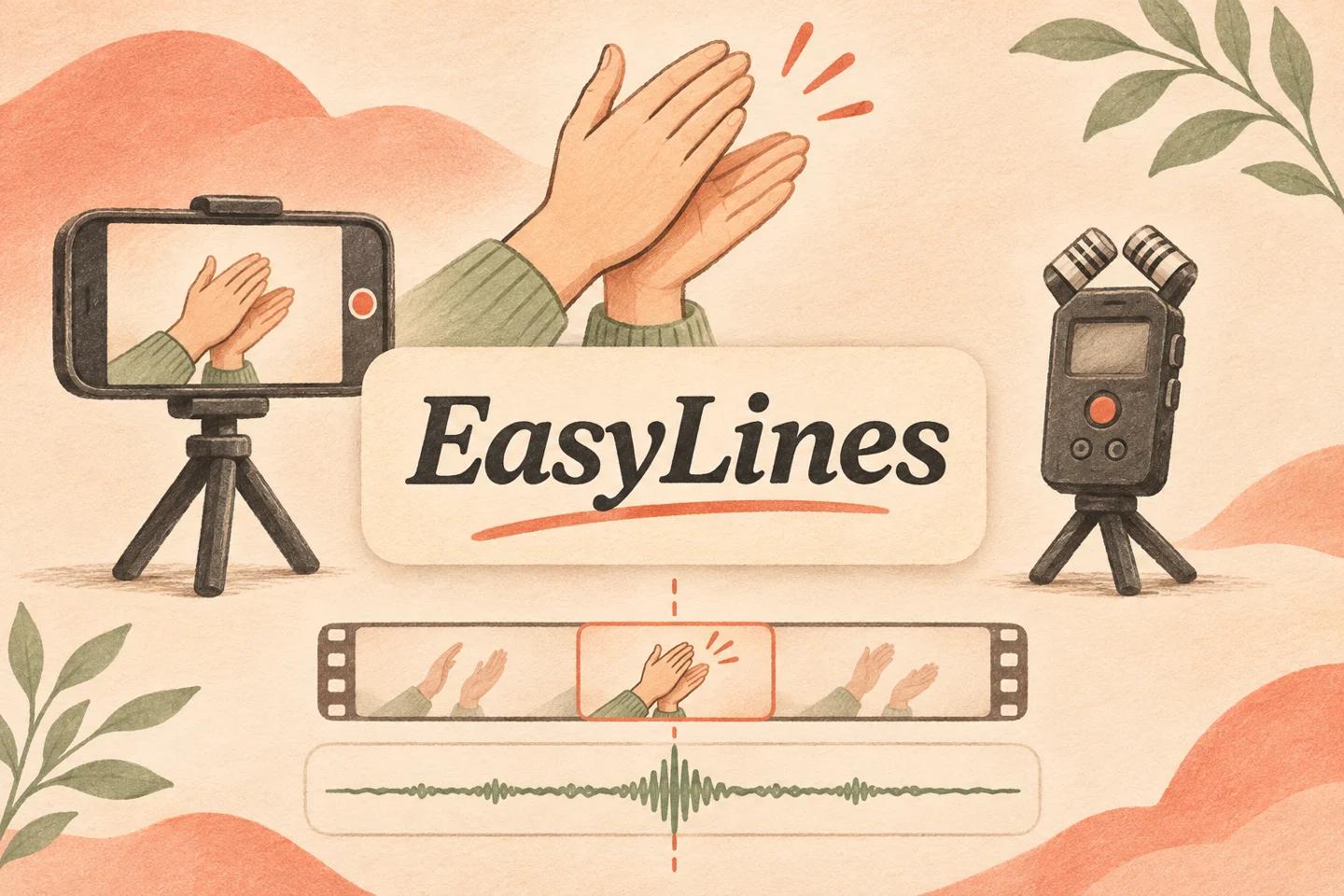
AI-generated editorial illustration.
On this page 8 sections
- 1. When is separate audio worth the extra step?
- 2. How should you mark the take?
- 3. What should you align in the editor?
- 4. What does a complete example look like?
- 5. How do you distinguish offset from drift?
- 6. Which audio should remain in the final mix?
- 7. What should the handoff record include?
- 8. Frequently asked questions
To sync separate audio and video, record a visible clap that both devices hear, then align the clap’s audio peak with the matching picture event in your editor. Identify the files as the same take and check speech near the beginning and end. A single alignment point fixes an offset; it does not prove that a long recording stays synchronized throughout.
When is separate audio worth the extra step?
Use a separate recording only when it solves a concrete capture need and you can manage the matching files. A microphone recorder may give you a useful sound source, but it also creates another start control, storage location and handoff. Do not add that complexity simply because two devices look more professional. First compare whether the ordinary recording path already supplies understandable speech.
List what each device captures and how you will retrieve the files. The video may also contain a rough reference audio track, while the recorder holds the intended final voice. Preserve both during preparation. The phone audio guide covers that initial sound check. A separate recorder should be part of an understood workflow rather than a substitute for testing the actual microphone position and listening to the saved result.
How should you mark the take?
State a short project and take identifier while both devices are recording. Then make one clear visible clap within the camera frame and within useful hearing range of the microphones. Leave a moment before beginning the real passage. Keep the clap ordinary and safe; it does not need to be painfully loud or close to someone’s ear to provide a recognizable event.
Use one unambiguous clap rather than several rapid claps whose peaks could be confused. If you restart either device, treat the new recording as a new matching pair and repeat the identifier. A continuous audio recording spanning several video takes needs clear notes about the boundaries. The practical goal is to know which picture and sound belong together before you attempt a precise timeline alignment.
What should you align in the editor?
Locate the clap in the picture and the corresponding transient in the separate audio. Use your editor’s documented synchronization or timeline controls to bring those events together, then listen and watch the first spoken line. Adobe’s synchronization documentation, checked 10 Nov 2026, describes synchronizing selected timeline clips, including an audio-based option. Other editors have their own controls and requirements.
Do not assume the highest peak anywhere in the audio is the clap. A dropped object or a loud word may be larger. Confirm the event using the take identifier and nearby sound. Keep the original sources untouched and perform alignment in the editing project. This article describes a proposed workflow, not a verified result with a named recorder, camera or automatic synchronization system.
What does a complete example look like?
Imagine a fictional two-minute explanation recorded on a phone with a separate audio recorder. Both devices capture “Folder guide, take two,” followed by one visible clap. The editor finds that identifier in each file, places the audio beside the matching video and aligns the clap event. They then inspect the first sentence rather than assuming the files are finished merely because the peaks line up.
Next they check a distinctive phrase near the middle and a clear mouth movement near the ending. If the beginning looks aligned but the ending does not, they record that observation before making changes. The example is invented and includes no measured synchronization result. It illustrates why identification, initial alignment and later verification are three different tasks. Completing the first two does not eliminate the need for the third.
How do you distinguish offset from drift?
An offset is a consistent timing displacement; drift describes a mismatch that changes through the recording. If speech seems equally early throughout, inspect the initial alignment. If the beginning is useful but the end increasingly diverges, investigate the changing mismatch instead of repeatedly sliding the entire file. Confirm that you have not accidentally paired different takes before diagnosing equipment behavior.
Check the recorded file properties and your editor’s guidance before applying a speed change or conversion. Different devices and workflows can introduce different issues, and there is no universal correction value supplied here. Preserve the source files and document any adjustment. If reliable matching cannot be achieved, a new recording may be preferable to a complex repair whose side effects you cannot evaluate. Do not claim a clap guarantees synchronization for an unlimited recording length.
Which audio should remain in the final mix?
Choose the intended voice track and check whether the reference track is still audible. Playing two nearly aligned versions together can produce an unwanted doubled or altered voice. Keep the reference available for checking, but manage its output deliberately in the editor. Listen to the exported file rather than relying only on timeline labels or a muted icon you remember clicking.
Inspect any joins where separate audio stops or a pickup begins. Room sound and voice character may change even when lip synchronization is correct. The pickup guide helps plan clean replacement boundaries. If the final video contains a demonstration sound that matters, confirm it remains audible on the chosen source. Replacing the voice path should not silently remove an important click, impact or other part of the explanation.
What should the handoff record include?
Record the video filename, audio filename, spoken take identifier and the alignment event used. State whether the start, middle and end were inspected and identify any remaining mismatch. This is more useful than a note saying “audio synced” without scope. A collaborator should be able to locate the exact pair and repeat the check without guessing which files you meant.
The two-person dialogue guide handles performance cues if the scene has more than one speaker. Use the natural recording pillar for the spoken delivery itself. Separate audio is finishing work in this workflow; no EasyLines audio-merging or automatic synchronization feature is claimed. Accept the result only after the exported video keeps the intended voice and picture together through the full useful passage.
EasyLines is preparing to launch. It focuses on reading a script and recording your delivery, with adjustable text and pace. Finishing work belongs in your chosen editor. If that upcoming workflow fits your needs, join the EasyLines waitlist; availability will be confirmed at launch.
Frequently asked questions
Does one clap guarantee a whole take is synchronized?
No. It provides a recognizable alignment event. Check speech later in the recording for changing mismatch.
Should both devices hear the clap?
Yes. A visible event and recognizable sound help identify and align the matching recordings.
Why does the voice sound doubled?
Check whether both the reference and intended final audio are playing. Manage their output deliberately and inspect the export.
Does EasyLines merge separate audio?
No such feature is claimed. Perform synchronization in a separate verified editor.
Sources and further checks
Coming to iPhone and iPad
Put your next script on EasyLines.
A little help with the words. More room to be yourself. Join the waitlist and we’ll email you at launch.