Clear audio for phone video: a practical sound check
Find the cause of quiet, echoing, or distorted phone-video audio with a repeatable recording test before buying another microphone.
 EasyLines team6 min read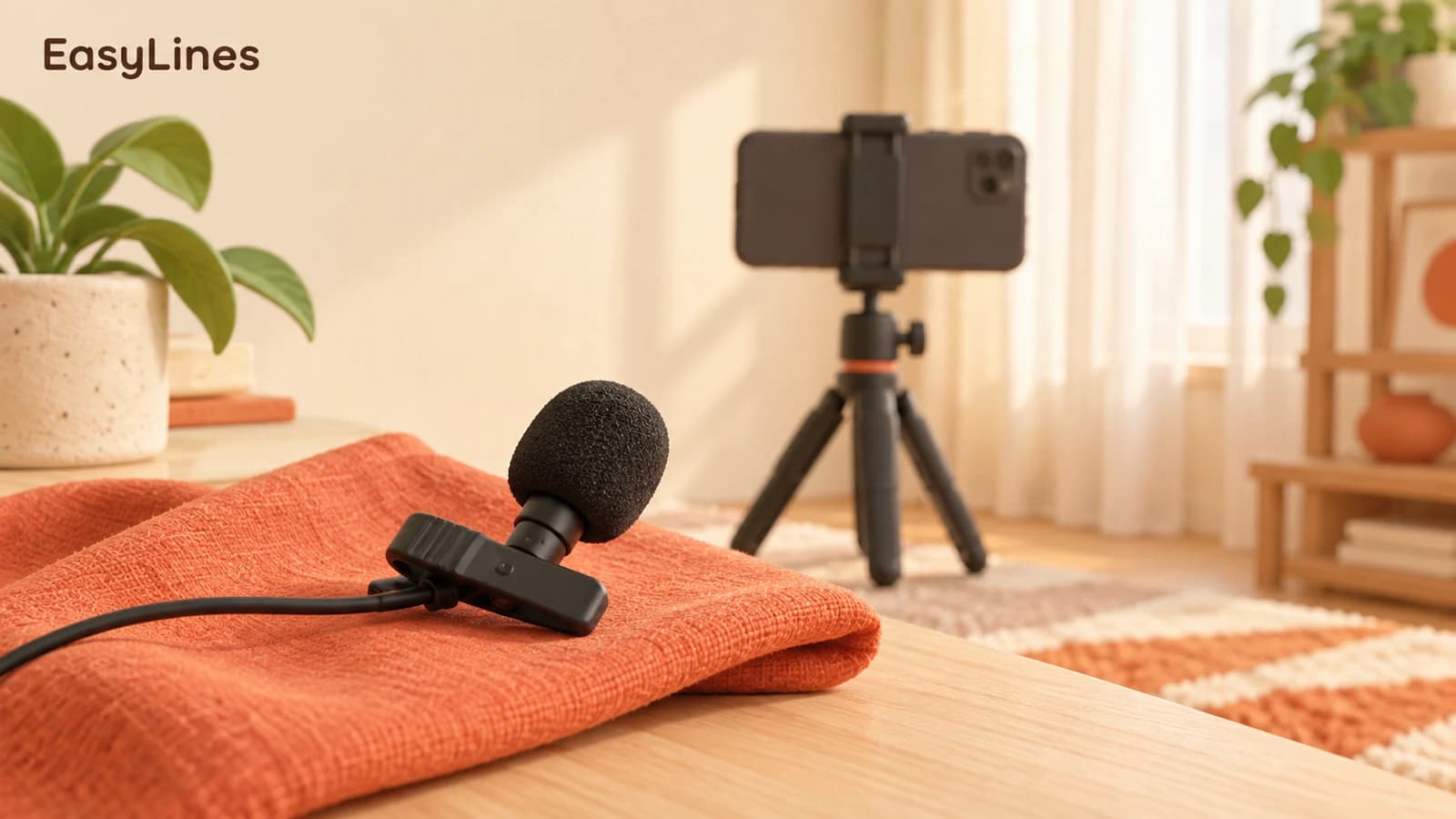
AI-generated editorial illustration.
On this page 7 sections
- 1. Start with a sample you can compare
- 2. Remove noise at its source when you can
- 3. Check distance and reflections separately
- 4. Verify input routing and permissions in the recording app
- 5. Separate four common symptoms before changing anything
- 6. Check the saved take before the full session
- 7. Frequently asked questions
To get clearer audio for a phone video, record a short sample in the actual room, listen through headphones, and change one variable at a time: background noise, microphone distance, room reflections, or input routing. An expensive microphone cannot compensate for a cable that is not connected or a room full of competing sound. Use this diagnostic order before recording your full script.
Start with a sample you can compare
Read two ordinary sentences at the volume you expect to use in the real take. Include a short pause, a louder word, and a natural head turn. Save the sample and listen to the file itself instead of judging the live preview. Write down the main problem in plain words: too quiet, hollow, crackling, distorted, or dominated by the fan. That description gives the next adjustment a purpose.
Keep the same sentences for each comparison. A different performance can disguise whether a setting helped. Save the samples with simple names such as room-one and room-two in your notes or file manager. You do not need studio measurements to make a useful choice, but you do need a consistent reference. Listen at the same playback volume so a louder sample does not automatically seem better.
Keep the original sample until you finish the session. If a later adjustment creates a new problem, that reference lets you return to a known result instead of comparing only from memory.
Remove noise at its source when you can
Listen to the room before you start. A fan, air conditioner, open window, refrigerator, or laptop may be unremarkable in daily life but obvious during a quiet spoken recording. If it is safe and comfortable, pause the noisy appliance for the short take or choose another spot. Do not compromise ventilation or working conditions to chase silence; record somewhere more suitable instead.
Record a few seconds without speaking, then speak at your ordinary level. The pause helps you notice the difference between continuous room noise and a problem that happens only when you talk or move. If the crackle coincides with a gesture, check clothing and cables before changing software. If it appears while nothing moves, test the connection and input device separately.
Check distance and reflections separately
Try a sample closer to the microphone while keeping the picture useful. Then try a softer part of the room, such as a space with curtains and upholstered furniture rather than bare walls. These are two separate experiments. If you move the phone, close the window, and add a microphone at the same time, you will not know which change made the useful difference.
A clip-on microphone needs its own movement test. Secure it according to its manufacturer’s instructions, keep the capsule clear of rubbing fabric, and say the lines while making the gestures you will actually use. Do not assume that hiding a microphone completely under clothing is harmless. Compare the sound before and after placement, and check again if you change a jacket or scarf.
Verify input routing and permissions in the recording app
Connect the microphone before opening the recording app, then make a new test in that app. A successful sample in a different app does not prove that the intended recorder is using the same input. Check the accessory maker’s compatibility instructions, connector requirements, battery, and any receiver controls. Avoid buying an adapter solely because it physically fits the socket.
Apple requires apps to request permission before using the microphone. If a recording is silent, check the app’s microphone permission in system settings and retry a fresh sample. Built-in Camera features and audio options can differ by iPhone model, operating system, and app. A setting documented for Apple Camera is not automatically an EasyLines feature. Use the controls available in the recorder you are actually testing.
Separate four common symptoms before changing anything
If the voice sounds distant but otherwise clean, test microphone distance and placement first. If it sounds roomy or hollow, compare a less reflective location. If it crackles only when you move, check clothing, the connector, and cable strain. If it becomes harsh only on louder syllables, inspect the available level settings and make a controlled loud-word sample. These observations narrow the next experiment; they are not a remote diagnosis of a particular accessory.
A problem that remains after one change is useful evidence. Put the setting back before testing a different explanation so you do not accumulate adjustments you cannot understand. Keep a short written result next to each sample: “fan paused, hum lower” or “new connector, crackle unchanged.” That record helps you avoid repeating the same purchase or setting change next week.
Use the phone setup guide to check the picture separately from the sound. If you are filming several pieces, the batch-recording checklist helps you preserve the tested connection and room arrangement. When the setup is repeatable, you can spend your attention on the explanation instead of monitoring equipment during every sentence.
Check the saved take before the full session
Play the saved test through headphones and then through the speaker you normally use. Listen for swallowed word endings, sudden changes in level, and distortion on the louder word. If your natural voice clips, adjust the available input control or placement according to the microphone instructions. Speaking unnaturally softly for an entire explanation is usually a poor substitute for finding the cause.
Once the sample works, leave the setup alone for the session. Note the room, accessory, connection, clothing placement, and any changed settings. Keep a short reference take for the next recording day. EasyLines focuses on helping you deliver and record a script; do not plan on an unverified noise-removal or audio-editing feature to rescue an unclear original. Fix the largest audible issue before you begin the full take.
- Record the same two sentences.
- Identify one audible problem.
- Change one variable and save a second sample.
- Listen to the saved file in the app you will actually use.
Frequently asked questions
Should I buy a microphone first?
Record a controlled sample first. You may solve the problem by reducing room noise, changing distance, or fixing a connection.
Why is a saved video silent?
Check microphone permission and the intended input connection, then make a new sample in the actual recording app.
Can I use Apple Camera audio settings in every app?
No. Available audio controls depend on the app, device, and OS. Verify the controls in your chosen recorder.
Can EasyLines remove background noise afterward?
Do not rely on that. EasyLines focuses on prompting and recording; use a separate editor for any finishing tools you need.
Sources and further checks
Coming to iPhone and iPad
Put your next script on EasyLines.
A little help with the words. More room to be yourself. Join the waitlist and we’ll email you at launch.