Voice-follow teleprompter or auto-scroll?
Choose between voice following and steady auto-scroll with the same short script, then test pauses, ad-libs, and the actual recording conditions.
 EasyLines team6 min read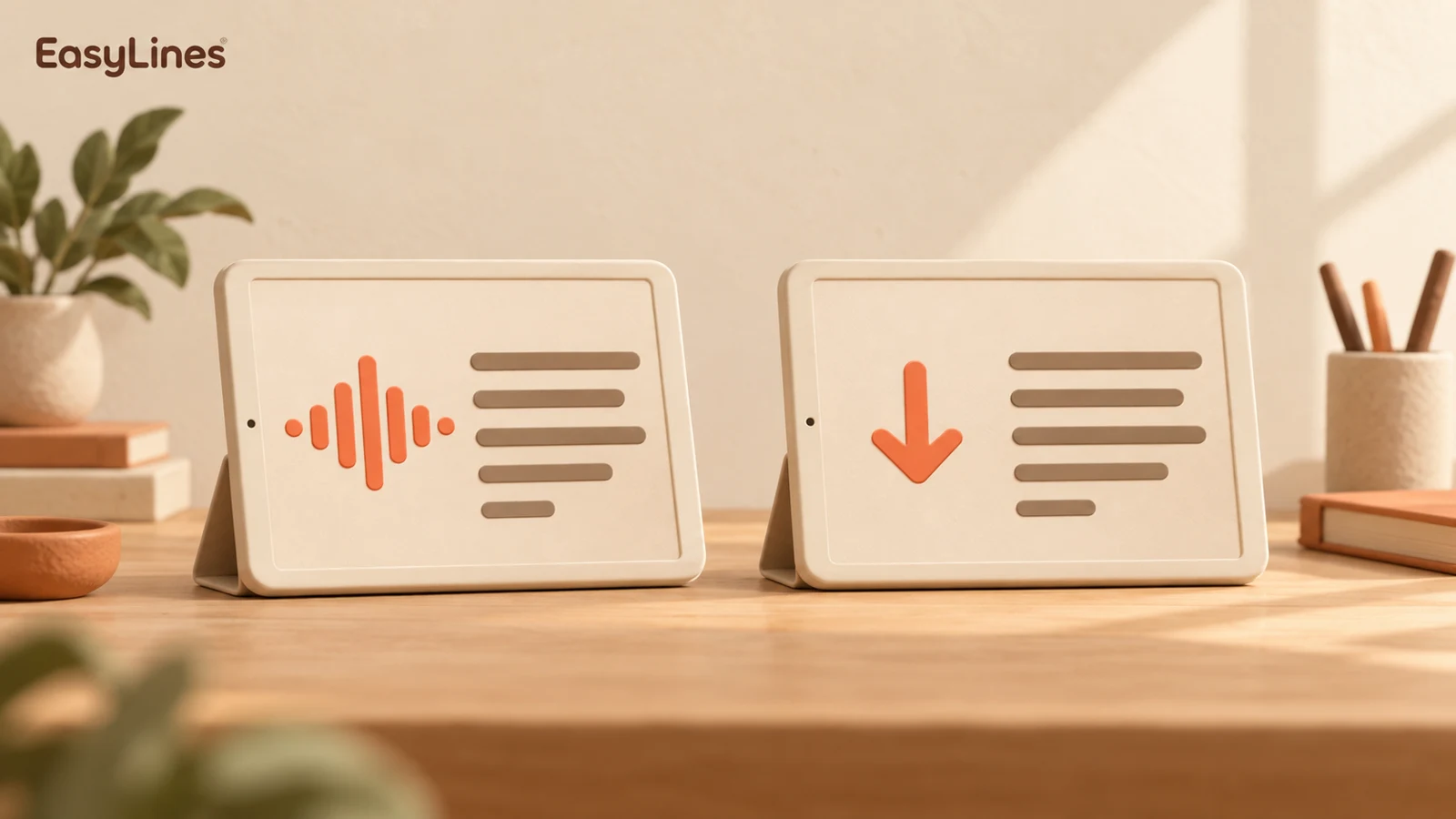
AI-generated editorial illustration.
On this page 7 sections
- 1. Understand what each mode is trying to do
- 2. Test a pause and a small change of wording
- 3. Check recognition availability on the actual device
- 4. Set auto-scroll from a real read, not a formula
- 5. Make the comparison fair enough to be useful
- 6. Choose a default and know the backup
- 7. Frequently asked questions
Choose voice following when you want the script to respond to your delivery, and choose auto-scroll when you want a predictable pace you can set yourself. Neither mode fixes a script that is hard to say. Test both with the same short paragraph, including a pause and a changed phrase, in the room and on the device you will actually use.
Understand what each mode is trying to do
A steady scrolling prompter moves text according to a chosen pace. Your job is to read comfortably within that pace, pausing or adjusting when needed. A voice-following prompter listens to your speech and tries to keep the relevant words in view. Your job is still to know the idea, speak clearly, and recover calmly if the displayed position does not match your next sentence.
The useful comparison is not which label sounds more advanced. It is which behavior demands less attention during your particular delivery. A short tightly timed announcement may feel comfortable with a steady speed. An explanation with pauses and gestures may benefit from responsive following. These are starting hypotheses to test, not universal rules or claims that one mode always produces a more natural video.
Write down the exact sentence where you lost attention in each sample. That makes the comparison concrete: you can change the pause, wording, or pace at that point and test whether the next recording becomes easier to deliver.
Test a pause and a small change of wording
Use a paragraph you understand rather than unfamiliar sample text. Read it once without recording and remove phrases that feel awkward. In the first test, add a natural pause after the main point. In the second, replace one phrase with an equivalent you would actually say. Notice how much attention you spend watching the words instead of explaining the idea.
If a mode loses the place, practice the recovery before the important take. Stop, find the next useful thought, and restart the sentence if necessary. You do not need to make a recognition error part of the final video. A short clean pickup can be easier than trying to improvise around an entire paragraph while you are also checking the camera.
Check recognition availability on the actual device
Voice features depend on the implementation, recognition availability, permissions, and recording conditions. EasyLines is designed to use on-device speech recognition for following. Where that is unavailable, it falls back to scrolling at a chosen pace. Do not assume that a successful demonstration on someone else’s device establishes the behavior on your own device and preferred language.
Give the recorder access to the microphone when prompted and check speech-recognition permission if required. Apple’s permission model distinguishes access to capture hardware from the speech-recognition service. If a permission is denied, use system settings to review it rather than repeatedly changing your script. Test in your real room as well: a quiet desk rehearsal and a noisy demonstration are different conditions.
Set auto-scroll from a real read, not a formula
Begin with a pace that feels slightly relaxed and read the whole paragraph. If you continually arrive at the next line before it becomes visible, adjust the pace in a small step and repeat. If the text runs away while you gesture or breathe, slow it down or split the script into smaller thoughts. Make the adjustment from an observed problem instead of selecting a speed because it looks efficient.
Keep text size and line width comfortable while adjusting speed. Changing all three at once makes it difficult to identify the reason a take improved. When you find a useful combination, record a short sample rather than trusting the rehearsal alone. Looking at a camera can change your pace, and a product demonstration creates pauses that a straightforward read may not include.
Make the comparison fair enough to be useful
Choose a paragraph that resembles the work you actually record. A product explanation should include a normal hand movement or object demonstration. A teaching clip should include the pause you leave after introducing a new idea. If you test only a smooth sentence read quickly from beginning to end, you may choose a setting that fails precisely where your real delivery becomes more thoughtful.
Repeat the comparison after changing a major condition, such as moving to a noisier room or using another input device. Note which mode you chose and why: “steady pace felt easier for the timed announcement” is a more useful record than “auto-scroll is best.” The first statement gives you an observation you can revisit. The second turns one test into a rule that may not fit tomorrow’s script.
For eye movement or awkward wording, use the natural delivery guide and the spoken-script checklist. Those problems can persist in either mode because they come from the reading arrangement or the sentence itself. Keep mode selection as one small part of a tested setup, and use the EasyLines waitlist to hear when the recorder is ready to try.
Choose a default and know the backup
Review the two saved samples for the message rather than for flawless word matching. Which one sounds like an explanation? Which one lets you finish a thought without chasing the screen? Choose that mode as the starting point for this session. Keep the alternative available for a script or environment where your usual choice becomes distracting.
EasyLines is a teleprompter and recorder, not a promise of perfect recognition or automated performance coaching. Write the version you can say, test the mode you intend to use, and keep a simple recovery plan. If you want to try this workflow at launch, join the waitlist on the homepage. The best setting is the one that leaves enough attention for the person watching your video.
- Same paragraph and recording conditions.
- A deliberate pause and one changed phrase.
- Separate checks for recognition and microphone permission.
- Saved samples reviewed for clear delivery.
Frequently asked questions
Will voice following understand every change I make?
Do not assume perfect recognition or arbitrary ad-lib handling. Test the wording changes you actually make and practice recovering your place.
Does auto-scroll need my voice?
A steady scrolling mode uses your chosen pace rather than listening for each spoken line.
Which mode is best for beginners?
Try both with one short script. Choose the mode that lets you focus on the idea with fewer adjustments.
What happens when on-device recognition is unavailable?
EasyLines is designed to fall back to auto-scroll. Check the notice and adjust the pace before continuing.
Sources and further checks
Coming to iPhone and iPad
Put your next script on EasyLines.
A little help with the words. More room to be yourself. Join the waitlist and we’ll email you at launch.