iPad teleprompter setup: lens, lines, and distance
Set up an iPad teleprompter with comfortable line width, a stable stand, and a short recording check before your full take.
 EasyLines team6 min read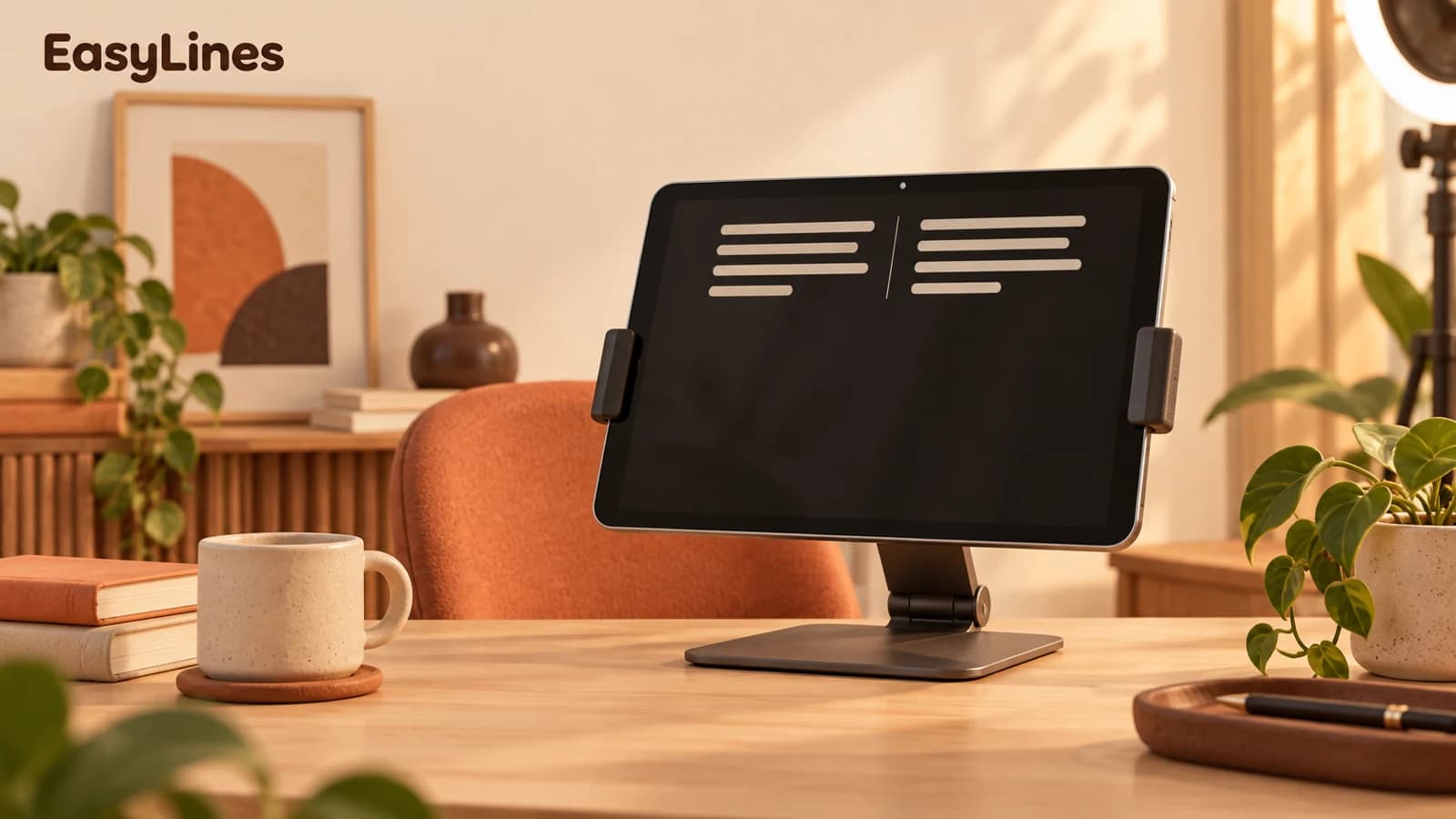
AI-generated editorial illustration.
On this page 7 sections
- 1. Find the camera before arranging the script
- 2. Support the tablet without blocking the controls
- 3. Use the extra display for comfort, not longer lines
- 4. Choose orientation before the real take
- 5. Turn the result into a setup note
- 6. Run a ten-second comparison instead of guessing
- 7. Frequently asked questions
Start an iPad teleprompter setup by finding the actual camera lens, placing the tablet on a stable stand, and narrowing the script until your eyes can follow it without sweeping across the screen. A larger display gives you room to make text comfortable; it does not mean the words should fill the whole display. Use the short checks below before committing to a long recording.
Find the camera before arranging the script
Look for the front camera on your particular iPad. Its position depends on the model and how you hold the device. Do not assume that the top of a portrait screen is always the closest point to the lens. Rotate the tablet into your planned recording position, identify the lens again, and imagine a short line running from that lens to the words you will read.
Put a tiny removable marker beside the lens if you keep looking at your preview. Keep it away from the camera and sensors. This gives your eyes a clear destination between phrases. The aim is not to stare without blinking. It is to avoid checking your own face every time you finish a sentence. Read one thought, let your expression change naturally, then return to that small point.
Support the tablet without blocking the controls
Use a stand that securely holds the tablet in the intended orientation. Check the clamp, center of gravity, and desk before recording. A stand that looks steady with an empty table can wobble when you rest a forearm on it or demonstrate a product. Keep the charging cable clear of your hands and leave enough reach to stop the recording without pulling the device toward you.
Set the lens near a comfortable eye level, then frame your normal gestures. If you need a tall stack of unstable objects to get there, change the surface or stand instead. Make a note of the stand height and your chair position after you find a useful setup. Repeating a known position makes the next session easier than rebuilding everything from memory.
Use the extra display for comfort, not longer lines
Begin with a short paragraph and increase the text size until you can read from your natural sitting or standing distance. Then reduce the width of the reading column if your eyes visibly travel from side to side. Font size, distance, and line length work together. Changing just one setting can solve a problem that otherwise feels like a lack of confidence on camera.
A landscape tablet can make a very wide paragraph look inviting. Resist that temptation. You are speaking to a viewer, not reading a spreadsheet. Break long sentences into short spoken thoughts and leave breathing room between them. If a prompter does not let you move the reading area next to the lens, use a narrower block and compare a short test before deciding whether that arrangement works for you.
Choose orientation before the real take
Decide where the finished video will be used and choose portrait or landscape before setting the framing. Check that both your head and the objects you will demonstrate remain inside the picture. Do not rely only on the live preview: save a short sample and play the saved file. This catches a framing or orientation mismatch before you spend time recording the full explanation.
If you edit the script in a smaller iPad window, check that the keyboard leaves the text and recording action reachable. Return to the window size you plan to use for recording before the test. EasyLines has adaptive iPad layouts in development, but physical iPad capture and real multitasking are still being verified. This guide describes a general setup method, not a claim that every capture arrangement has passed a hardware test.
Turn the result into a setup note
Make a compact setup note with the tablet orientation, approximate stand height, chair position, and the text setting that worked. Describe the result in terms you can repeat: “lens level with eyes while seated, narrow paragraph, saved sample reviewed.” A note like that is more useful than remembering that the tablet looked about right. If someone else will use the room, include where the stand can sit without blocking a walkway or putting a cable across the desk edge.
For a course or a long explanation, try the opening, a paragraph from the middle, and the ending before deciding that the entire script fits the arrangement. The middle often contains the longest sentences and most detailed demonstration. A setup that only works for a short opening may need a larger font, shorter sentences, or a different reading distance before the main session.
Use the natural-reading guide to diagnose delivery after the physical setup is stable. If you also record on a phone, compare the separate talking-head setup checklist rather than assuming the same lens position and framing will carry over. Keep the useful idea, but repeat the saved-file check whenever the device or its orientation changes.
Run a ten-second comparison instead of guessing
Read the same two sentences twice. In the first take, use the wider column you would normally choose. In the second, use a narrower column while keeping the font size and distance comfortable. Review both with the sound off. Look for repeated sideways eye movements, squinting, leaning forward, and shoulders that rise as you concentrate. Change the setup that caused the problem, rather than trying harder to hide it.
Now listen with the screen turned away. A technically tidy picture is not useful if the script makes you rush. Shorten one awkward phrase, pause at the end of the idea, and try again. Stop adjusting when the message is clear and the setup feels repeatable. Record your chosen distance, orientation, and text size in a note so the next session starts from a tested position.
- Identify the lens in your chosen orientation.
- Secure the stand and check normal gestures.
- Test a readable narrow column.
- Review the saved file, including sound and orientation.
Frequently asked questions
Is landscape always better on iPad?
No. Choose the orientation for the intended video and confirm the lens position and saved framing in that orientation.
How far away should I stand?
Use a distance at which your framing and gestures work, then make the text readable from there. There is no single useful distance for every lens, tablet, and room.
Why do my eyes move across the screen?
Try shortening the reading column before increasing the scrolling speed. Compare identical sentences in a saved test.
Does EasyLines already guarantee every iPad setup?
No. Adaptive iPad support is being developed and tested. Physical capture and actual multitasking still need device verification before launch.
Sources and further checks
Coming to iPhone and iPad
Put your next script on EasyLines.
A little help with the words. More room to be yourself. Join the waitlist and we’ll email you at launch.