Elegant Teleprompter for Android: overlay or recorder?
A practical guide to Elegant Teleprompter Android floating window, with a worked example, clear decision checks, source boundaries and a recording checklist.
 EasyLines team6 min read
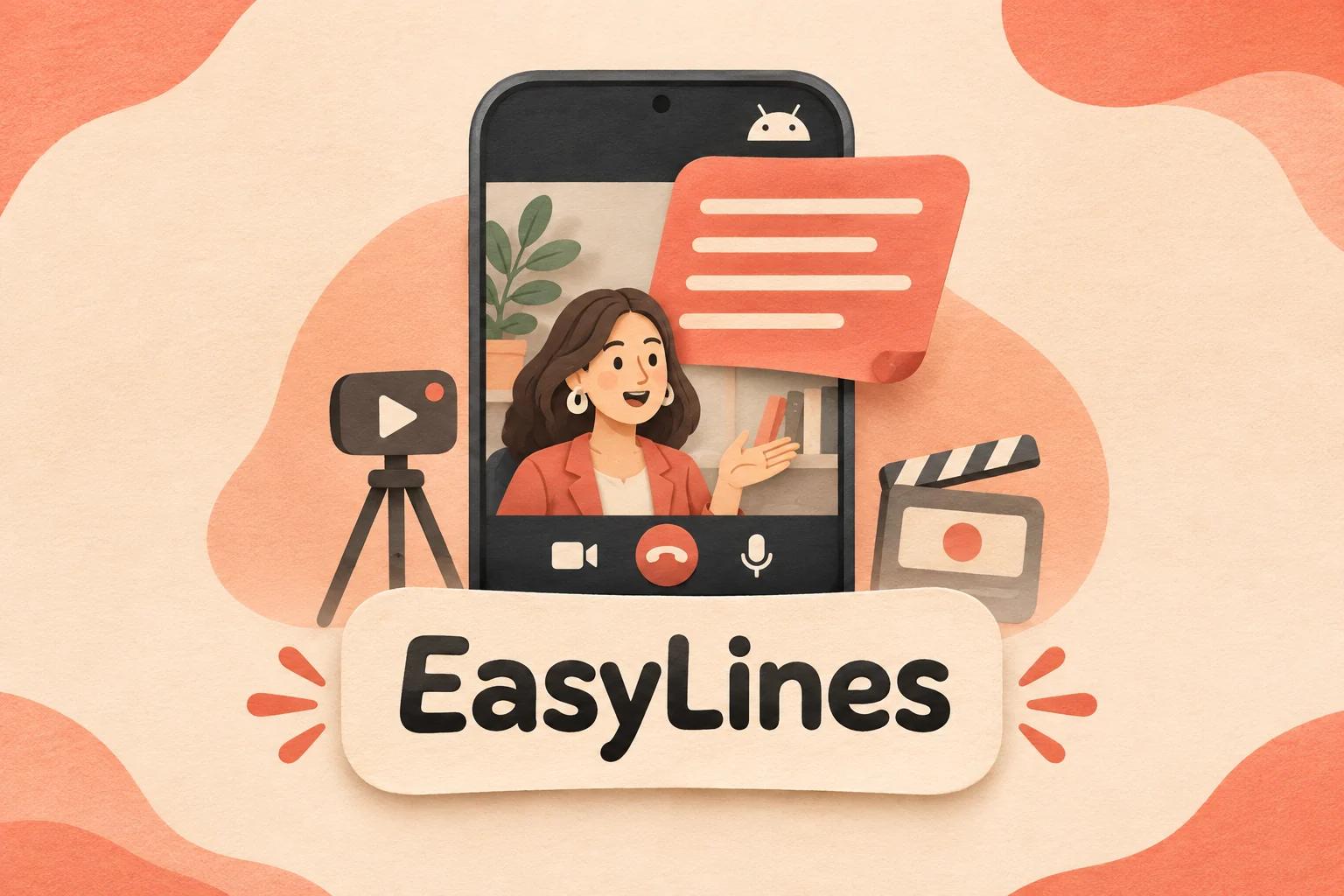
AI-generated editorial illustration.
On this page 8 sections
- 1. When is a floating teleprompter window useful?
- 2. What does Elegant Teleprompter officially offer?
- 3. How do you check that the script stays private?
- 4. How should you position an Android overlay?
- 5. How does an overlay compare with a dedicated recorder?
- 6. What is the final acceptance checklist?
- 7. How can you prepare the spoken recording copy?
- 8. Frequently asked questions
Elegant Teleprompter is an Android option to evaluate when you want a floating script window alongside another recording or presentation app. The important check is whether the overlay behaves correctly with your exact destination app and stays out of the delivered picture. EasyLines is an upcoming iPhone-focused prompting and recording option, so it is not a current Android substitute.
When is a floating teleprompter window useful?
A floating window is useful when you want to keep the recording or presentation application you already use. It adds reading support to that route instead of making a new recorder the center of your setup.
Imagine a creator whose workplace requires a specific meeting application. Their immediate question is not which app has the most editing tools. It is whether they can keep a few lines near the camera while staying inside the required meeting workflow. An overlay may fit that requirement, but its behavior needs a real check on the intended device. App switching, display orientation and screen capture can change what appears in the final picture. Write down what you expect the audience to see before enabling anything. That written boundary makes it easier to spot an accidental script capture during rehearsal.
What does Elegant Teleprompter officially offer?
Elegant Teleprompter lists a floating window, mirror mode and Bluetooth remote controls on its official page. Checked 9 Nov 2026, its comparison also separates core features from Pro additions such as cloud sync and richer importing.
Use the official feature and edition list to confirm the current offer, then follow its Google Play link for your device and region. This guide does not claim that every destination app accepts the overlay or that every remote works. The words “floating window” describe a feature category; they do not guarantee a particular recording result. If a feature is essential, confirm its edition and test it before building a shoot around it. Avoid treating an old tutorial or a similarly named store listing as the authority. Match the developer and product page, then use the actual installation's settings.
How do you check that the script stays private?
Make a short test in the exact capture mode you will deliver, then watch the saved recording or inspect the audience view. Looking at your own screen is insufficient because your local view and the transmitted view may differ.
Use harmless sample text such as “This is my private reading copy.” Place it where you expect to read, start the destination application's recording, and speak two sentences. Stop and review the actual output. If another person can check a meeting's audience view, ask them to report whether the sample text is visible. Do not use confidential material for this trial. If the text is captured, change the capture area or route only where the destination app supports that choice, then repeat the short check. Keep the unsuccessful output private and remove it when it no longer serves a diagnostic purpose.
How should you position an Android overlay?
Position the current line near the camera without covering the controls you need to operate. Choose a readable size first, then adjust the width and location while watching a short test of your eye movement.
Avoid shrinking the text merely to fit a dense paragraph into a corner. A smaller visible portion with comfortable lettering can be easier to follow than a miniature page. Use a plain rehearsal paragraph with one long sentence and one short sentence, then notice whether your eyes visibly track across a wide line. Also check that you can stop recording without dragging the script window away. For a systematic delivery adjustment, use the natural-reading guide. Treat every screen orientation you intend to use as a separate setup check; a useful portrait layout may cover important controls after rotation.
How does an overlay compare with a dedicated recorder?
An overlay preserves another app as the capture destination, while a dedicated recorder combines reading and recording in its own interface. Choose according to the application you must use and the file you need at the end.
The table compares routes, not measured quality. Elegant Teleprompter suits a present Android overlay requirement when your device and destination pass rehearsal. An existing recorder without an overlay may suit a brief where memorized beats or a separate cue sheet are enough. EasyLines may suit a future iPhone capture workflow, but its prelaunch status means it cannot replace a working Android solution today. Do not infer Android availability, captions or editing from EasyLines' planned prompting features. If you need a particular platform today, eliminate options that do not meet that requirement before comparing styling, convenience or future possibilities.
| Decision row | Elegant Teleprompter overlay | Recorder without overlay | EasyLines |
|---|---|---|---|
| Current availability | Android listing linked by vendor | Use an available recorder | Preparing to launch |
| Reading route | Floating script beside destination app | Outline or separate cue sheet | Future integrated prompting and recording |
| Best-fit requirement | Keep an existing Android destination | Simple capture without overlay | Future focused iPhone capture |
| Essential check | Audience output and permissions | Readable cues and saved take | Availability; no Android claim |
What is the final acceptance checklist?
Accept the setup only when you can read, control the session and deliver a recording without unwanted script text. Keep those three checks separate so a comfortable read does not hide a capture mistake.
Prepare the spoken copy with the short-video script pillar, then compare scrolling approaches with voice-follow versus auto-scroll if pacing is your remaining issue. Neither guide establishes Android compatibility for a named app. Record your actual device, destination app, orientation and capture mode alongside the successful result. Recheck after a significant app update or a changed meeting setup. If you cannot verify the audience view, use a route you can verify rather than relying on assumptions about overlays. A printed cue sheet with a short outline can be a useful temporary alternative while you resolve that uncertainty.
How can you prepare the spoken recording copy?
Keep the approved words in a separate recording copy and do a short read before the final take. Check the task-specific facts against the sources above, and keep production directions outside the spoken lines. EasyLines is preparing to launch and focuses on reading your script and recording your delivery. If that scope fits your future workflow, join the EasyLines waitlist. Use an available tool for work you need to complete today; the waitlist is not a download or a promised launch date.
Frequently asked questions
Does an overlay always stay out of the recording?
Do not assume so. Test the actual destination application and capture mode, then review the delivered file or audience view.
Can EasyLines replace Elegant Teleprompter on Android?
No current Android substitution is established. EasyLines is upcoming and its verified product direction is for Apple mobile devices.
How do I check whether the floating window is readable?
Use harmless sample text, set a comfortable size, record a short read and check your eye movement and control access.
Should I test again after rotating the phone?
Yes. Recheck position, readability, controls and delivered output in every orientation you intend to use.
Sources and further checks
Coming to iPhone and iPad
Put your next script on EasyLines.
A little help with the words. More room to be yourself. Join the waitlist and we’ll email you at launch.