Speakflow Remote Mode for a presenter and operator
A practical guide to Speakflow remote operator teleprompter, with a worked example, clear decision checks, source boundaries and a recording checklist.
 EasyLines team6 min read
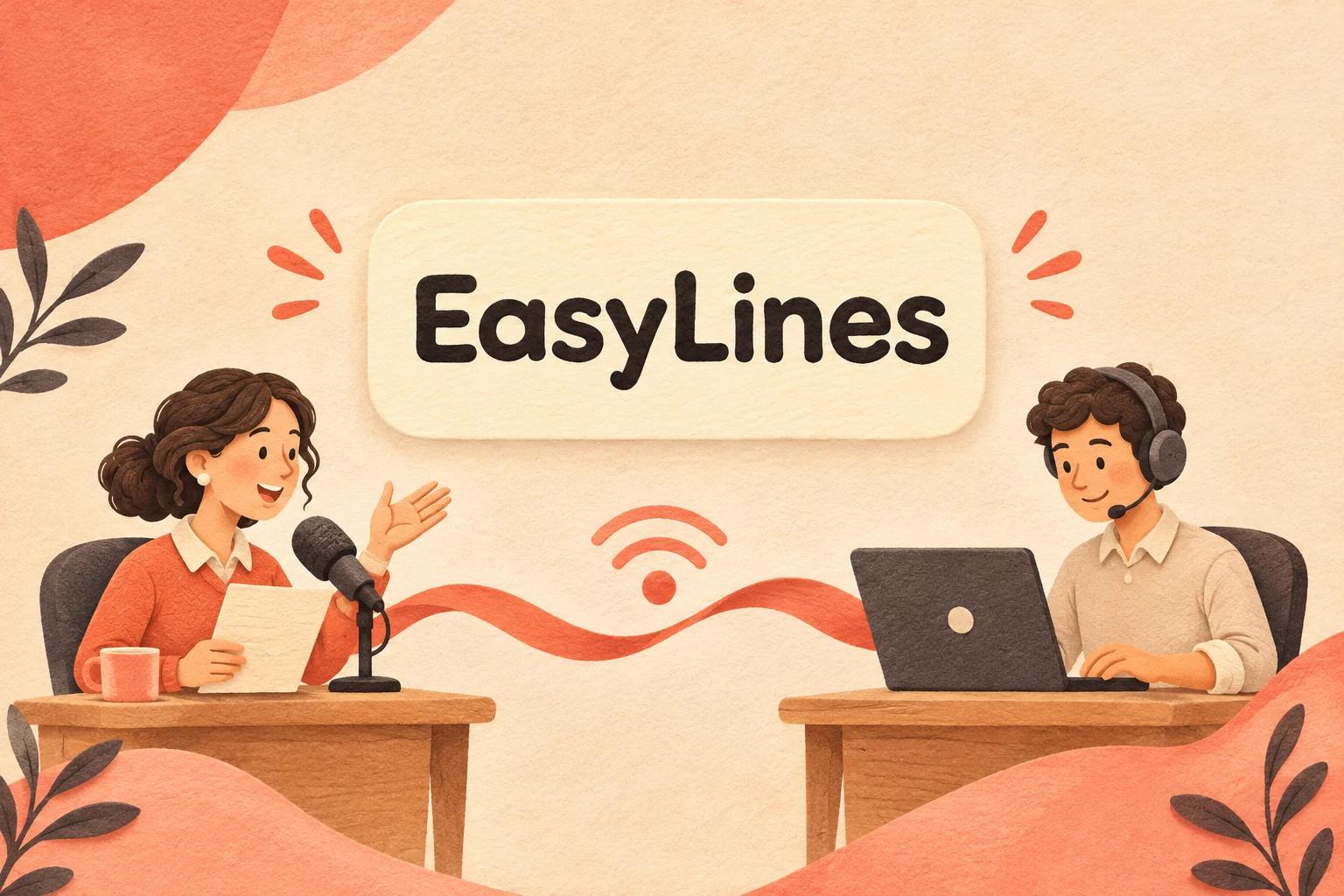
AI-generated editorial illustration.
On this page 8 sections
- 1. When does an operator help more than solo control?
- 2. What does Speakflow document about Remote Mode?
- 3. Which commands should presenter and operator agree on?
- 4. How do you rehearse an operator-controlled script?
- 5. How should you compare this with a solo phone setup?
- 6. What should happen if the remote connection stops?
- 7. How can you prepare the spoken recording copy?
- 8. Frequently asked questions
Speakflow Remote Mode lets a presenter read on one device while another device controls the prompting session. For a presenter and operator, agree on who controls scrolling, how to request a pause and what happens if the connection fails. EasyLines is an upcoming option for focused solo phone recording, but it has no verified remote-operator feature to substitute for this workflow.
When does an operator help more than solo control?
An operator is useful when the presenter should stay in position and someone else can manage the script movement. The operator's task is to support the presenter's meaning and pauses, rather than impose an uninterrupted reading speed.
For example, a presenter may need to gesture toward a physical demonstration while another person watches the script. An operator can respond to a deliberate pause without asking the presenter to reach across the set. That benefit depends on a shared protocol and a rehearsed setup; it is not automatic simply because two devices connect. Decide whether the operator is also responsible for recording. If so, separate the “recording started” confirmation from “prompting started.” Otherwise both people can assume the other has begun the session while neither has checked the saved take.
What does Speakflow document about Remote Mode?
Speakflow documents syncing a reading device with a controlling device through Remote Mode. Checked 9 Nov 2026, its official syncing guide is the source to follow for the current connection steps.
The company's remote teleprompter explanation explicitly describes a presenter reading while another person scrolls. Those are vendor-described capabilities, not our own performance measurements. Check current account requirements and the supported setup in that guide before a live session. Do not infer a latency guarantee, offline behavior or unlimited reliability from a feature description. Connect the exact devices you will use and run the intended session route. If either person changes location, network or browser, repeat the connection test rather than treating last week's successful rehearsal as proof of today's readiness.
Which commands should presenter and operator agree on?
Use a small vocabulary with one action per command. “Hold” can mean stop movement, “back to heading” can mean return to a named section, and “ready” can mean wait for the start signal.
Write those definitions above the operator's copy of the script. Avoid a vague “go back” when several paragraphs begin similarly. Give each section a distinct heading that both people can identify, then practice returning to one of them without restarting the whole presentation. A hypothetical exchange is: presenter says “Hold”; operator stops the text; presenter says “Back to the packing checklist”; operator moves there and confirms “Ready.” During a recorded session, leave enough separation to remove operational chatter in your chosen editor. During a live session, use whatever agreed communication route keeps the audience experience clear without assuming a private channel exists.
How do you rehearse an operator-controlled script?
Rehearse at least one intentional pause, one restart and one skipped sentence. Those moments show whether the operator follows the speaker or merely advances the page mechanically.
Use the same short paragraph for each exercise and note where control becomes unclear. If the operator moves ahead during a demonstration, add an unambiguous hold cue to the production notes. If the presenter improvises, agree whether the operator should wait or move to the next named section. Keep production notes visually distinct from spoken words so the presenter does not read a command accidentally. Our script-formatting guide covers the readable copy itself. The operator rehearsal adds a separate layer: shared understanding of where the presenter is allowed to pause, shorten or return without confusing the person controlling the text.
How should you compare this with a solo phone setup?
Compare the required control arrangement before comparing convenience. Speakflow's documented remote route fits a two-person prompting requirement; a solo recorder may fit a creator who wants to manage the take independently.
The table includes EasyLines honestly as an upcoming option rather than treating it as available today. Its verified source and public FAQ describe voice following with an auto-scroll fallback, not a remote operator console. A team that needs current remote control should evaluate an available product with that documented capability. For a different question, our PromptSmart versus Speakflow solo-presenter guide looks at individual use. Do not carry its solo preferences into a team decision without checking the operator's job. The extra person changes permissions, communication and recovery needs even if the presenter reads the same script.
| Decision row | Speakflow Remote Mode | Solo local prompting | EasyLines |
|---|---|---|---|
| Status | Documented current remote feature | Depends on selected available tool | Preparing to launch |
| Controller | Another synced device | Presenter | Voice-follow or auto-scroll in verified source |
| Best-fit requirement | Presenter and separate operator | Independent local session | Future focused phone recording |
| Essential check | Connection, commands and fallback | Reachable controls and pace | Launch availability; no remote console claim |
What should happen if the remote connection stops?
Choose a fallback before recording: pause the take, continue from a short outline, or restart locally with a method you have tested. For a live session, decide which fallback preserves a useful explanation without waiting indefinitely for text movement.
Keep a separate outline containing section names and essential facts. Ask the operator to stop controlling the session if the presenter explicitly switches to that outline, so a recovered connection does not produce competing cues. Use the short-video script pillar to keep each section's central point clear, and the natural-reading guide for delivery. After rehearsal, record the fallback trigger in plain language, such as “If the text does not respond to hold, finish the sentence and pause the take.” This is a suggested protocol, not a vendor requirement or a guarantee that every interruption will be recoverable.
How can you prepare the spoken recording copy?
Keep the approved words in a separate recording copy and do a short read before the final take. Check the task-specific facts against the sources above, and keep production directions outside the spoken lines. EasyLines is preparing to launch and focuses on reading your script and recording your delivery. If that scope fits your future workflow, join the EasyLines waitlist. Use an available tool for work you need to complete today; the waitlist is not a download or a promised launch date.
Frequently asked questions
Does the operator have to control recording too?
No. Assign recording and prompting responsibilities explicitly. If one person handles both, use separate confirmations for each start.
What should a hold command mean?
Agree on one definition before rehearsal, such as stop text movement until the presenter gives the next instruction.
Should we test only a perfect read?
No. Include a pause, restart and skipped sentence so the operator practices responding to the presenter.
Does EasyLines offer a verified remote console?
No verified remote-operator feature is established in the current source and public FAQ. It is upcoming and focuses on script reading and recording.
Sources and further checks
Coming to iPhone and iPad
Put your next script on EasyLines.
A little help with the words. More room to be yourself. Join the waitlist and we’ll email you at launch.